You sit more than you realize—often for hours at a time. Whether you’re working from home or at a desk in an office, the way you sit in your office chair directly impacts your health, energy, and focus. Poor posture leads to back pain, neck strain, and even reduced circulation, all of which drain your productivity. But the good news? How to sit in an office chair properly is a skill you can learn quickly with the right guidance.
This guide breaks down the exact steps to achieve optimal sitting posture, adjust your chair correctly, and avoid common mistakes that silently damage your body. You’ll learn how to align your spine, position your arms, and set up your workspace for long-term comfort. No guesswork. No vague advice. Just science-backed, actionable steps that work—starting today.
Adjust Your Seat Height for Proper Leg Alignment
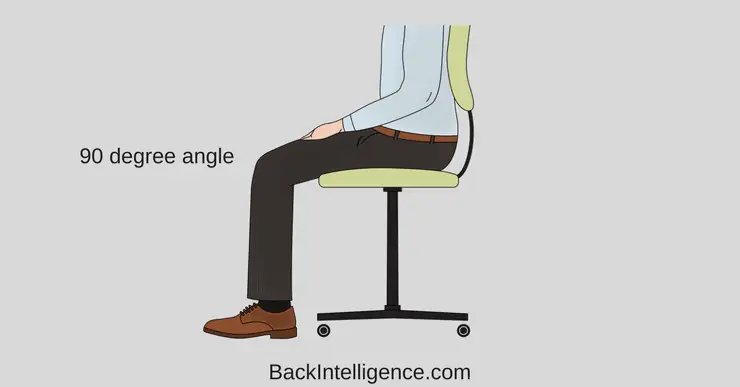
Getting your seat height right is the first step to healthy sitting. When your chair is set correctly, your legs support your body evenly and reduce strain on your lower back.
Set Knees at 90 Degrees
Adjust your chair so your knees form a 90-degree angle when your feet are flat on the floor. Your thighs should run parallel to the ground. If your knees point upward, your chair is too low. If your feet dangle, it’s too high.
Keep Feet Flat on Floor
Your feet must rest flat on the floor to stabilize your pelvis and support spinal alignment. If they don’t reach, use a footrest instead of crossing your legs or balancing on your toes. This improves circulation and reduces pressure behind the knees.
• Test the fit by sliding your hand under your thigh—it should glide with slight resistance
• Recheck height if you change shoes or switch desks
• Avoid perching on the edge of the seat
Optimize Seat Depth to Prevent Leg Strain
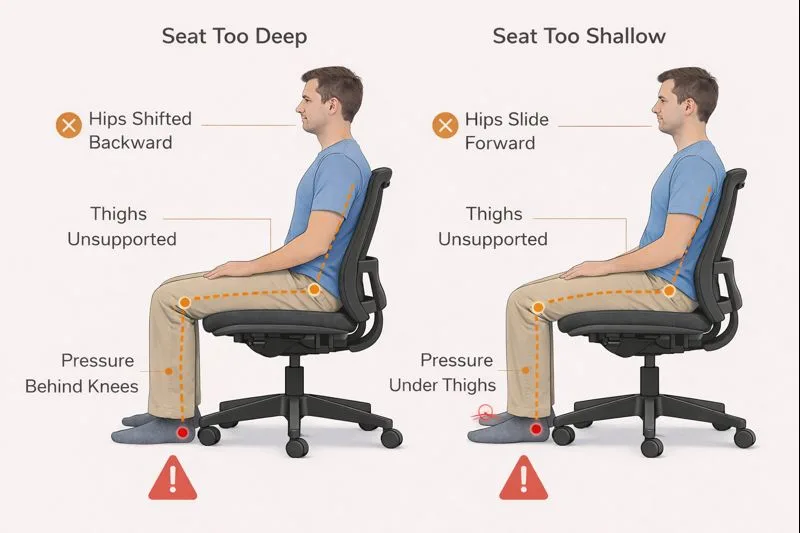
Seat depth affects blood flow and lower back support. Too shallow or too deep, and you risk discomfort or long-term issues.
Leave 2–4 Fingers Behind Knees
Slide forward or backward until there’s a 2–4 finger gap between the back of your knees and the front of the seat. This space prevents the chair edge from pressing into your legs, which can cause numbness or swelling over time.
Prevent Leg Pressure
If your chair has adjustable depth, use it. If not, consider a cushion to shift your position slightly forward. Never let the seat dig into the back of your thighs—it restricts circulation and forces you to lean forward.
Support Your Lower Back to Maintain Spinal Health
Your lumbar spine needs consistent support to avoid disc pressure and chronic pain.
Use Built-in Lumbar Support
Most ergonomic chairs include adjustable lumbar support. Position it so it fits snugly into the inward curve of your lower back, around belt level. Move it up or down to match your torso height.
Add a Pillow If Needed
If your chair lacks support, place a rolled towel or lumbar pillow behind your lower back. It should fill the gap—not push you forward. Avoid slouching or leaning away from the backrest.
• Sitting without lumbar support increases spinal disc pressure by up to 40%
• Replace flat cushions that flatten over time
• Don’t use oversized pillows that arch your back unnaturally
Align Your Spine in a Neutral Position
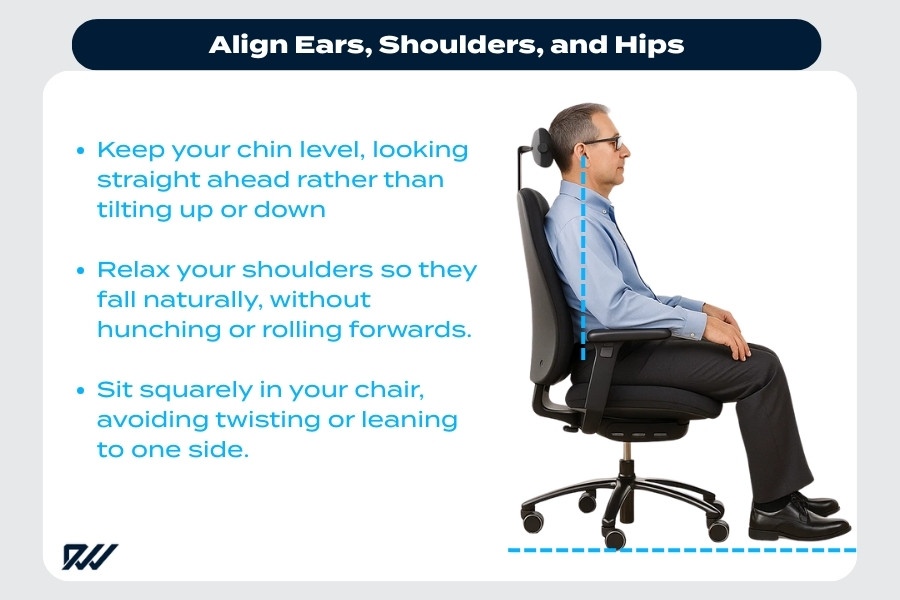
A neutral spine reduces wear on joints and muscles, keeping you comfortable for longer.
Sit in a Neutral Position
Your spine should maintain its natural S-curve. To find this, sit all the way back in your chair, tuck your pelvis slightly forward, and feel your lower back supported. Your ears, shoulders, and hips should align vertically.
Imagine a Ceiling String
Visualize a string pulling the top of your head toward the ceiling. This mental cue straightens your posture instantly and reduces strain on your neck and upper back. Reset this alignment every 20–30 minutes.
Position Shoulders and Arms for Typing Efficiency

Proper arm positioning prevents shoulder fatigue and wrist injuries.
Keep Shoulders Relaxed
Let your shoulders drop naturally—do not raise them toward your ears or hunch forward. If you feel tension, take a breath and release. Your arms should hang comfortably at your sides when not typing.
Set Elbows at 90 Degrees
Bend your elbows to 90 degrees with your forearms parallel to the floor. If your elbows flare out or hang too low, adjust your chair height or desk setup. This angle reduces strain on your rotator cuff and wrists.
Avoid Wrist Bending
Keep your wrists straight and neutral while typing. Don’t rest them on sharp desk edges. Use a padded wrist rest only during pauses—not while actively typing—to prevent carpal tunnel strain.
Align Head and Neck to Prevent Forward Head Posture

Your head weighs 10–12 pounds. Every inch it moves forward adds extra strain.
Balance Head Over Shoulders
Your head should sit directly above your spine, not jut out in front of your body. Forward head posture strains neck muscles and can lead to headaches and stiffness.
Set Monitor at Eye Level
Position your monitor top at or slightly below eye level and about an arm’s length away. This prevents constant tilting up or down. If your screen is too low, raise it with a stand or books.
• Looking down just 15 degrees doubles neck strain
• Use a laptop stand and external keyboard for better alignment
• Avoid propping screens on cluttered stacks
Optimize Your Workspace Layout for Minimal Movement
An efficient setup reduces repetitive motions and keeps your body stable.
Place Keyboard and Mouse Close
Keep both within easy reach—no stretching. Your elbows should stay close to your body. A clutter-free zone reduces unnecessary movements and muscle fatigue.
Center Devices in Front
Align your keyboard and mouse directly in front of you. Avoid twisting your torso repeatedly. Use a document holder if you frequently reference printed materials.
• Keep frequently used items within a 12-inch radius
• Use cable organizers to reduce visual clutter
• Position your phone on the same side as your dominant hand
Take Regular Movement Breaks to Stay Flexible
Sitting too long stiffens muscles and slows circulation.
Stand Every 30–60 Minutes
Set a timer to stand, stretch, or walk for 1–2 minutes every half hour. Even a short walk boosts focus and reduces back pressure. Use a sit-stand desk if available.
Try Micro-Stretches
While seated, do simple moves:
• Neck rolls (tilt head side to side slowly)
• Shoulder shrugs and rolls
• Seated spinal twists
• Ankle circles
These keep joints mobile and reduce tension buildup.
Avoid Common Sitting Mistakes That Cause Pain
Even small habits can lead to long-term damage.
Don’t Slouch or Lean Forward
Slouching collapses your spine and strains discs. Leaning forward to reach your screen overloads your lower back. Sit back fully in your chair and adjust your setup instead.
Never Cross Legs Long-Term
Crossing legs tilts your pelvis and misalignes your spine. It also restricts blood flow. Keep both feet flat and uncrossed for balanced support.
Don’t Ignore Chair Height
A chair that’s too high forces toes to support weight. One that’s too low strains your back. Recheck height after any desk or shoe change—even a new pair of shoes can affect alignment.
Follow the Setup Sequence for Perfect Ergonomics
Adjusting in the right order saves time and ensures everything works together.
Step-by-Step Adjustment Order
Follow this sequence:
1. Seat height: Feet flat, knees at 90°
2. Seat depth: 2–4 fingers behind knees
3. Backrest: Lumbar support in place
4. Monitor: Top at eye level, arm’s length away
5. Keyboard/mouse: Close, wrists neutral
6. Schedule breaks: Every 30–60 minutes
Doing it in order prevents repeated adjustments and ensures everything works together.
Use Ergonomic Accessories to Enhance Comfort
Simple tools can make a big difference in long-term comfort.
Add a Footrest When Needed
If your feet don’t reach the floor, a footrest is essential. It stabilizes your legs and supports proper hip alignment. Choose one with a non-slip surface and adjustable height.
Try a Lumbar Pillow
A small cushion or rolled towel works as a DIY lumbar aid. Place it at the small of your back—don’t let it push you forward. It should fill the gap, not create one.
Consider an Anti-Fatigue Mat
If you stand at a sit-stand desk, use an anti-fatigue mat. It encourages subtle movement and reduces leg strain.
Know Your Body’s Limits and Adapt Accordingly
One-size-fits-all doesn’t apply to posture.
Customize for Your Frame
Adjust your chair based on your height, leg length, and torso size. What works for a colleague may not suit you. Tailor every setting to your unique body.
Change Positions Frequently
Even perfect posture shouldn’t be held for hours. Shift slightly, stand, or recline occasionally. Movement is part of good posture—not the enemy of it.
Frequently Asked Questions About How to Sit in an Office Chair
How should I sit in an office chair to avoid back pain?
Sit with your back fully supported, knees at 90 degrees, and feet flat on the floor. Use lumbar support to maintain your spine’s natural curve and keep your head aligned over your shoulders. Adjust your monitor and take breaks every 30–60 minutes.
What is the correct height for an office chair?
Your chair is at the correct height when your feet rest flat on the floor, thighs are parallel to the ground, and knees form a 90-degree angle. If your feet don’t reach, use a footrest.
How far should I sit from my computer screen?
Sit about an arm’s length away from your monitor. The top of the screen should be at or slightly below eye level to prevent neck strain.
Should my elbows be at 90 degrees when typing?
Yes. Your elbows should bend at 90 degrees with forearms parallel to the floor. This reduces strain on your shoulders and wrists.
Can crossing legs while sitting cause health problems?
Yes. Long-term leg crossing tilts your pelvis, misaligns your spine, and restricts blood flow. Keep both feet flat on the floor for balanced support.
How often should I move while sitting at my desk?
Stand, stretch, or walk for 1–2 minutes every 30–60 minutes. Regular movement prevents stiffness, improves circulation, and boosts focus.
Key Takeaways for Mastering How to Sit in an Office Chair
• Always sit back in your chair with lumbar support engaged
• Keep knees at 90 degrees, feet flat, and monitor at eye level
• Take movement breaks every 30–60 minutes to reset posture
The best sitting position is the one you don’t stay in too long. Stay aware, adjust your setup to fit your body, and prioritize motion throughout the day. Your spine, joints, and focus will thank you.