The phone rings, and you hesitate—do you press the speaker button or pick up the handset? How do you transfer the call to your manager without dropping it? If you’ve ever felt unsure about how to work an office phone, you’re not alone. Modern office phones—like Yealink, Avaya, Zoom Phone, or Verizon One Talk—offer powerful tools for calling, conferencing, and collaboration, but only if you know how to use them. Without the right knowledge, even simple tasks like checking voicemail or dialing an extension can slow you down.
This guide gives you full control over your office phone system. You’ll learn step-by-step how to make and answer calls, transfer and conference, use extensions, manage voicemail, and troubleshoot common issues—whether you’re on a desk phone, mobile app, or 4G LTE device. No jargon, no confusion. Just clear, actionable instructions that help you communicate professionally and efficiently from day one.
Set Up Your Office Phone Correctly
Before making calls, ensure your phone is properly configured. The setup process depends on your system type, but the goal is the same: connect your device and link it to your business number.
Connect VoIP or IP Phones to the Network
For VoIP systems like Business Digital Voice or Zoom Phone:
- Plug the IP phone into your router using an Ethernet cable.
- Connect the power adapter and wait 30–60 seconds for the device to boot.
- Log in to your account portal (e.g., My Account or Zoom web dashboard).
- Assign your user profile and enable features like voicemail and call forwarding.
Pro Tip: Use a provider-optimized router—it improves call quality and reduces dropped calls.
Activate Mobile-First Systems Like One Talk
If your company uses a mobile-first system, setup is app-based:
- Download the One Talk app on your smartphone, tablet, or desktop.
- Sign in with your business credentials.
- Link your business number.
- Set call routing (e.g., ring mobile first, then desk phone).
No internet? 4G LTE desk phones work over cellular networks—perfect for remote offices or hybrid teams.
Make Outgoing Calls Without Confusion
Dialing should be simple, but office systems often have specific rules for internal and external calls.
Dial Internal Extensions Quickly
To call a coworker:
- On Yealink/Zoom Phones: Dial the 4-digit extension (e.g., 1234). During migration, you may need to dial 389 + 7-digit extension.
- On Avaya Systems: Press Directory, search by name, or enter the extension directly.
Pro Tip: Use the Directory button instead of memorizing numbers. Navigate with arrow keys and press OK to dial.
Make External Calls with the Right Format
For off-campus or long-distance calls:
- Lift the handset or press Speakerphone.
- Dial the full number, including area code (e.g., 555-123-4567).
- No need to dial “9” first—this is outdated on modern VoIP systems.
On Wildix SuperVision: Use the PBX phonebook—search by name and tap the green call icon.
Answer Incoming Calls Professionally
Answering promptly and correctly maintains professionalism and prevents missed opportunities.
Use Avaya IP Office Phones to Accept Calls
The display shows three options:
– Answer: Connect via handset or speaker.
– Send to Voicemail: Route directly without answering.
– Ignore: Let it ring out.
Press Answer, and the call appears on the A call appearance button with a flashing light.
Handle Incoming Calls on Yealink/Zoom Phones
- Pick up the handset to answer privately.
- Or press the Answer button for speakerphone.
A red light or screen alert indicates an incoming call.
Hold, Transfer, and Manage Active Calls
Once on a call, use built-in tools to hold, transfer, or add others—without dropping the line.
Place a Call on Hold Without Disrupting
Avaya IP Office:
- Press Hold.
- The caller hears music on hold.
- A flashing light confirms the hold status.
- Use B call appearance to make another call.
Yealink/Zoom Phone:
- Press Hold (top or right-side button).
- Press Resume to return.
Warning: Always say, “I’ll put you on hold for a moment—thank you for waiting,” before holding.
Transfer Calls the Right Way
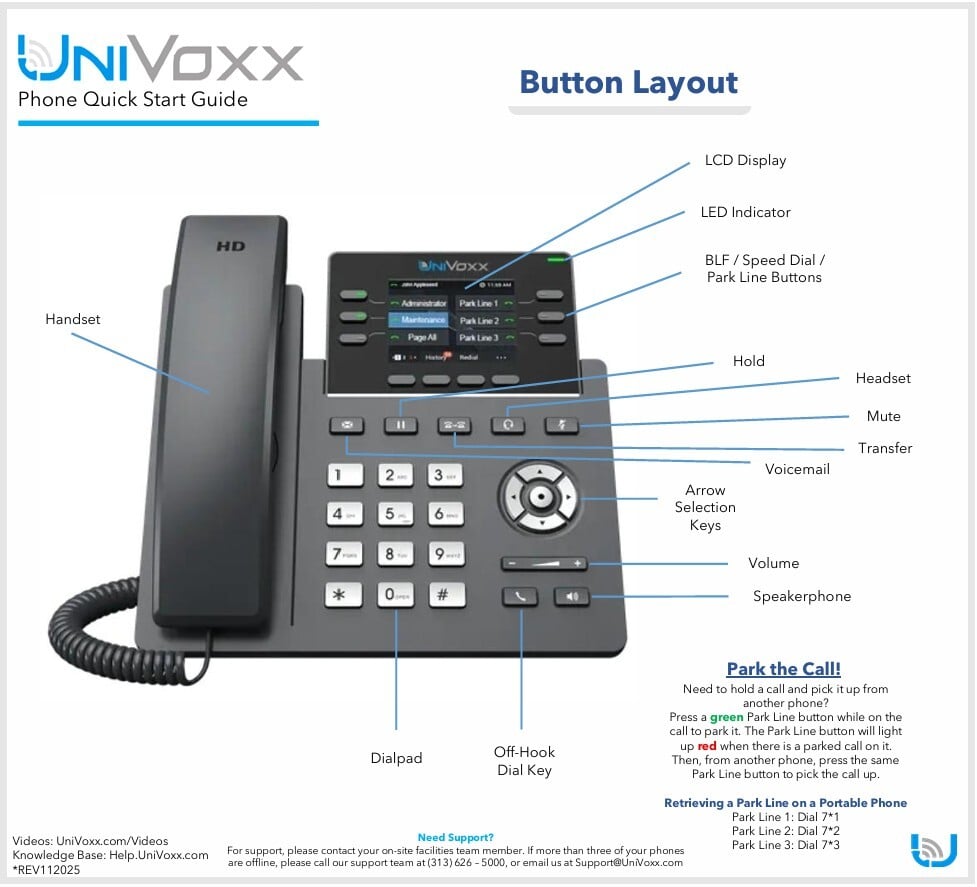
Transferring calls keeps your team connected—but doing it professionally matters.
Choose Between Blind and Announced Transfer
Blind Transfer (Fast but Risky):
- Press Transfer.
- Dial the destination number.
- Hang up or press Complete.
- The caller is sent directly—no confirmation.
Use only when you’re certain the recipient is available.
Announced Transfer (Recommended):
- Press Transfer.
- Dial the recipient.
- Wait for them to answer.
- Say: “Hi Sarah, I have a caller for you—can I send it over?”
- Press Complete to finalize.
This ensures a smooth handoff and better customer experience.
Send a Call Directly to Voicemail
Need to route a call without ringing the recipient?
- Press the Message button.
- Enter the extension.
- The call goes straight to their voicemail.
Key Difference: Use Message, not Transfer, to avoid disturbing someone.
Run Conference Calls in Minutes
Need to bring multiple people into a conversation? Conference calling is easy once you know the steps.
Start a Conference Call on Avaya IP Office
- Begin with an active call.
- Press Conference—the first call is placed on hold.
- Dial the next person (internal or external).
- Once connected, press Conference again to merge.
To Add More People:
– Press Conference → dial → connect → press Conference again.
Manage Participants During the Call
- Press Details to see all callers.
- Mute a participant with one tap. Icon changes to show mute status.
- Drop removes someone from the call.
Pro Tip: Mute non-speaking participants to reduce background noise.
Use Call Parking for Flexible Call Handling

Call parking lets you “park” a call in a shared zone so anyone in the office can retrieve it.
Park a Call When Leaving Your Desk
- Press a Park button (e.g., Park 1).
- The button flashes on your phone and all others.
- The caller waits in a global queue.
Retrieve a Parked Call from Any Phone
- Go to any phone.
- Press the flashing Park button.
- You’re instantly connected.
Use Case: You’re stepping into a meeting? Park the call and let a colleague pick it up.
Master Extensions and Internal Dialing
Extensions are internal shortcuts that route calls to individuals or departments—no full number needed.
Dial Using Extensions Correctly
- Pick up the handset.
- Enter the extension (usually 3–4 digits).
- Press Call or wait for auto-dial.
Note: Extensions stay the same even if employees move offices—great for consistency.
Benefits of Using Extensions
- Protects personal numbers.
- Simplifies internal communication.
- Supports call forwarding and voicemail setup.
Avoid using emergency numbers (911, 112) as extensions—this can cause system conflicts.
Access Voicemail and Review Call History

Missed a call? Your phone can tell you—and even save the message.
Check Voicemail on Yealink/Zoom Phones
- A red light means new voicemail.
- Pick up the handset and press Message.
- Enter your PIN when prompted.
- Follow voice instructions to play, delete, or save messages.
Bonus: Enable voicemail to email to receive audio files in your inbox.
Review Call Logs to Redial or Follow Up
Press the History button to see:
– Missed calls (marked with a red icon)
– Placed calls
– Received calls
– Forwarded calls
Use arrow keys to scroll and OK to redial.
Customize Your Phone Settings for Efficiency
Make your phone work for you—not the other way around.
Adjust Ringtones and Volume
On Yealink/Zoom Phones:
1. Press Menu.
2. Go to Basic > Ringtones.
3. Choose a ring style and adjust volume.
Change Your Voicemail PIN for Security
- Access voicemail.
- Follow prompts to enter settings.
- Select Change PIN and confirm.
Security Tip: Use a strong, non-obvious PIN—never “1234.”
Unlock Advanced Features for Productivity
Modern office phones do more than make calls. Use these tools to work smarter.
Use BLF Keys to See Coworker Availability
- BLF (Busy Lamp Field) buttons show if someone is available, busy, or on a call.
- Helps you decide who to call or transfer to—reduces interruptions.
Requirement: Your admin must enable presence settings.
Connect Bluetooth or DECT Devices
- Bluetooth: Pair a wireless headset for hands-free calling.
- DECT: Cordless handsets with up to 300 meters range—ideal for large offices.
DECT offers better audio quality and battery life than Wi-Fi or Bluetooth.
Start Video Calls on Compatible Phones
Phones like Wildix SuperVision have built-in 2MP cameras and 8-inch touchscreens.
- Start a video call from the contact directory.
- Share your screen if integrated with Zoom or Teams.
- No need for a separate conferencing system.
Fix Common Office Phone Problems Fast
Even the best systems have issues. Here’s how to resolve them quickly.
Improve Poor Call Quality
Symptoms: Echo, static, dropped calls.
Solutions:
– Check internet speed (minimum 5 Mbps for VoIP).
– Avoid bandwidth-heavy tasks during calls.
– Move DECT phones closer to the base station.
– Ensure jitter buffers are enabled.
Resolve Connectivity Problems
If the phone won’t connect:
– Restart the device and router.
– Check Ethernet or Wi-Fi connection.
– For 4G LTE phones, ensure cellular signal is strong.
Still not working? Test with another phone to isolate hardware issues.
Fix App Sync Failures
Mobile apps sometimes fail to sync:
– Log out and back in.
– Update to the latest app version.
– Reinstall the app if needed.
Upgrade From Outdated Phone Systems
Old office phones lack modern features and hurt productivity.
Limitations of Legacy Systems
- No mobile integration.
- No voicemail-to-email.
- Hard to scale for remote teams.
Impact: Customers wait longer. Employees waste time. Security lags.
Move to Modern VoIP for Better Communication
Upgrade to a cloud-based VoIP system to:
– Enable remote work.
– Access 45+ business features.
– Improve security with encryption and MFA.
Case Study: Chief Leschi Schools used Verizon’s VoIP solution to maintain communication during remote learning—keeping staff and students connected.
Secure Your Phone System and Stay Compliant
Protect sensitive data—especially in regulated industries.
Meet CJIS Requirements for Public Safety
For law enforcement:
– Enable multi-factor authentication (MFA).
– Use Mobile Device Management (MDM) to lock or wipe lost devices.
– Encrypt all data in transit and at rest.
Use Wireless Priority Service (WPS)
First responders get network priority during congestion:
– Free for verified users.
– Works on agency phones and BYOD (with DHS approval).
Manage BYOD Risks Safely
Allowing personal devices?
– Enforce strong passwords.
– Require MDM enrollment.
– Limit access to sensitive data.
Get Help When You Need It
Even experts need support. Know where to turn.
Contact Support for Immediate Help
- TechTeam for Internet: 24/7 via app or 1-800-460-8839
- Verizon Business Support: 1-800-837-4966
- Zoom Phone Help Center: Video tutorials and troubleshooting guides
Access Training Resources
- Live webinars for new system rollouts.
- On-demand videos for dialing, transferring, and voicemail.
- Guided onboarding for teams.
Bonus: Verizon Frontline members get exclusive discounts on equipment and service.
Key Takeaways for Mastering Your Office Phone
Knowing how to work an office phone isn’t just about pressing buttons—it’s about using communication tools to build better workflows, serve customers faster, and stay connected in hybrid environments. Start with the basics: answering, dialing extensions, and transferring calls. Then explore advanced features like conferencing, call parking, and voicemail to email. Always follow best practices—use announced transfers, check voicemail daily, and keep your PIN secure. When issues arise, use troubleshooting steps or contact support. Your office phone is more powerful than you think—now you know how to use it.
Frequently Asked Questions About How to Work an Office Phone
Can I use my office phone without the internet?
Yes, if you’re using a 4G LTE desk phone or a mobile-first system like One Talk. These operate over cellular networks and don’t require Wi-Fi or Ethernet.
How do I transfer a call without speaking to the recipient?
Use blind transfer: Press Transfer, dial the number, then press Complete. The caller is sent directly—ideal when you’re certain the person is available.
What does a red light on my office phone mean?
A red light typically means you have new voicemail or a missed call. Press the Message or History button to check.
Can I make video calls from my office phone?
Yes, if you have a video-enabled phone like the Wildix SuperVision. It has a built-in camera and touchscreen for face-to-face meetings.
How do I change my voicemail greeting?
Access voicemail, follow the prompts, and select Record Greeting. Speak clearly and include your name and availability.
What should I do if my office phone isn’t working?
- Restart the phone and router.
- Check cables or Wi-Fi connection.
- For mobile apps, log out and back in.
- If unresolved, contact your IT team or provider support.