Searching for a lost contract or overdue invoice shouldn’t take 20 minutes. Yet in disorganized offices, employees waste an average of 4.3 hours per week just locating documents. A well-structured office filing system eliminates this drain by making every file instantly accessible. The secret isn’t alphabetizing—it’s building a category-based system that mirrors how your team actually works. This method, proven by experts in File Anything in Your Home and Find It Again, cuts clutter and ensures files are found in seconds, not minutes.
You’ll learn how to implement a three-tab folder structure, sort files using the Post-it and Ziploc method, and manage paper flow with the 4-stage system—Running, Sitting, Sleeping, and Dead. Plus, you’ll discover how to integrate digital tools, maintain consistency, and prevent future chaos. Whether you’re starting from scratch or fixing a broken system, this guide delivers a sustainable, scalable solution.
Build a Category-Based Filing System
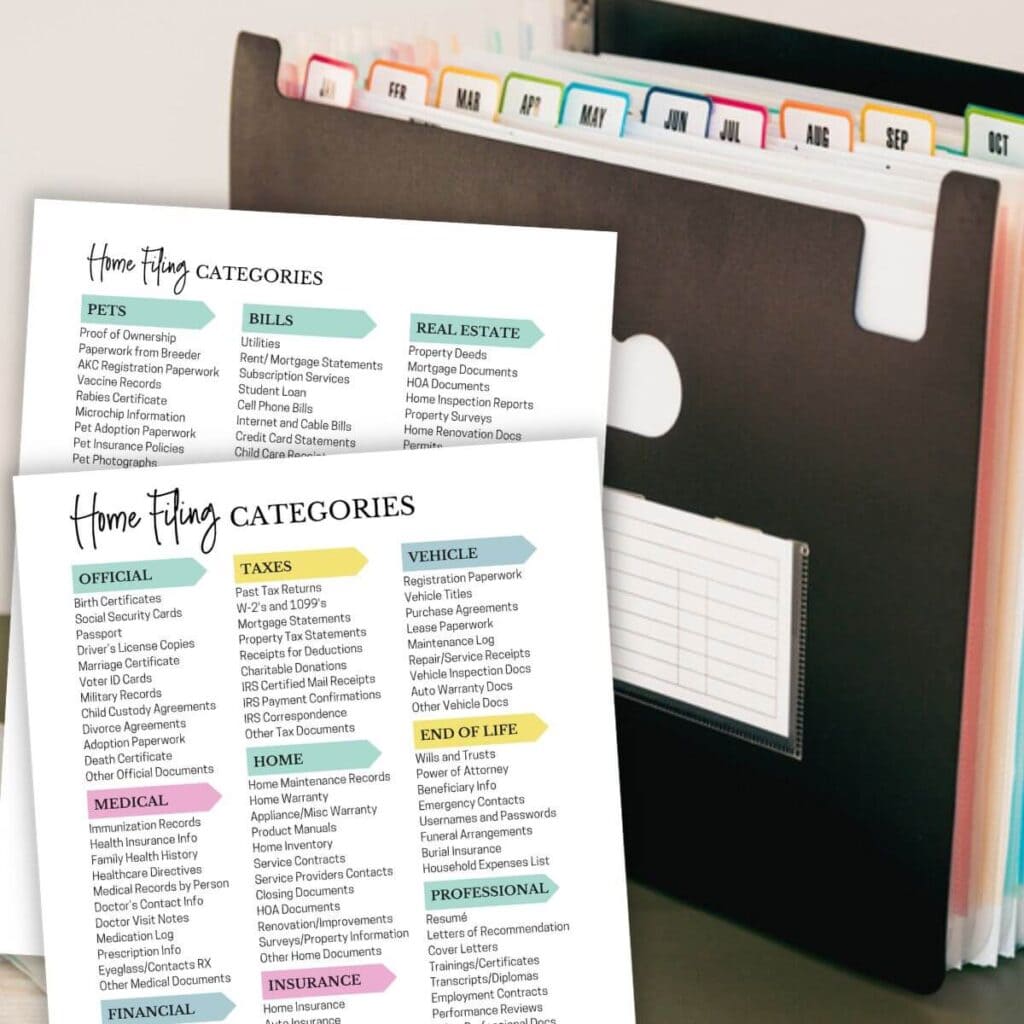
Alphabetical filing creates confusion because it ignores purpose. Where do you file “Toyota insurance”? Under A for auto, I for insurance, or T for Toyota? Different people will choose differently—leading to misfiles. Instead, organize by category, grouping documents by function: Client Accounts, Invoices, HR Records, Utilities. This approach aligns with how your team uses information, making retrieval intuitive and consistent.
Why Functional Categories Outperform Alphabetical Order
Category-based filing uses a shared mental model. Everyone knows Insurance belongs under Auto, not scattered across multiple letters. This reduces training time and prevents errors. As your business grows, you can add new categories—like Remote Work Policies or Cybersecurity Compliance—without overhauling the entire system. Alphabetical systems, by contrast, mix unrelated items (e.g., Apple Inc. and Auto Insurance) just because they start with “A,” creating noise that hides what matters.
Apply the 4-Stage Paper Flow to Manage Document Lifecycle
Not all files are used equally. Use this framework to manage volume and relevance:
- Running: Active files (e.g., current client contracts)
- Sitting: Frequently accessed (e.g., employee handbooks)
- Sleeping: Rarely used, kept for reference (e.g., tax returns older than five years)
- Dead: No longer needed (e.g., expired permits)
Start by shredding dead files—this alone can reduce paper volume by 30%. Then move sleeping files to remote storage. This keeps your active system lean and focused on what’s immediately useful.
Set Up the Three-Tab Folder Structure
The three-tab system is the backbone of a high-performance filing process. Each category folder has three labeled sections:
- Left: Information (e.g., policy brochures, user manuals)
- Center: Statements (e.g., monthly bills, bank reports, invoices)
- Right: Records (e.g., contracts, receipts, proof of ownership)
This design supports natural circulation, a concept from The Circulation Solution, ensuring documents flow logically through their lifecycle.
Isolate Statements for Fast Annual Archiving
Statements make up the bulk of office paper. By keeping them in the center tab, you create a clean, predictable archiving process. Every year, on the first Saturday after April 15, review all center tabs. Move statements older than eight years to remote storage—these become sleeping files. Because they’re already grouped, cleanup takes minutes, not days.
Keep Records and Information in Separate Tabs
Never mix long-term records with frequently updated information. Contracts and deeds go in the right tab—they rarely change. Policy updates and instruction sheets go in the left tab—they’re replaced often. This separation prevents clutter and makes updates obvious. When a new employee handbook arrives, you know exactly where to swap it in.
Sort Files Using the Post-it and Ziploc Method
Starting from scratch? Avoid chaos with this low-tech, high-efficiency sorting method.
Label Categories with Post-its for Visual Clarity
Write each main category—like HR, Utilities, Client Accounts—on a Post-it note. Stick them on a wall or table edge. This visual roadmap keeps you focused and prevents backtracking. Work through one category at a time with singular focus, pulling every related document before moving on.
Use Ziploc Bags to Prevent Desk Clutter During Sorting
Instead of messy piles, use gallon-size Ziploc bags as temporary holders. They’re portable, transparent, and protect documents from spills or crumpling. Drop files into the correct bag as you sort. Once complete, transfer them directly to labeled folders. This method keeps your workspace clean and progress visible.
Choose the Right Folders and Storage Setup

Your filing system’s durability depends on the right supplies and layout.
Use Two-Inch Extra-Capacity Hanging Files for Maximum Space
Standard folders fill too quickly. Two-inch extra-capacity hanging files hold more documents and fit neatly in banker boxes or filing cabinets. Start organizing in a banker box—it’s easier to assemble and test your system before transferring to a permanent cabinet.
Store Sleeping Files in Remote, Labeled Locations
Files older than eight years should be moved to remote storage: a fireproof cabinet, closet shelf, or offsite box. Label them clearly as sleeping files and include the year range (e.g., 2010–2015 Tax Records). These aren’t part of daily operations—they’re backups for audits or legal needs. Removing them from active drawers speeds up searches and reduces clutter.
Organize Digital Files with a Structured Hierarchy
A modern office needs both physical and digital organization. Scanning documents isn’t enough—you need a logical folder structure.
Create a Clear Digital Folder Tree
On Google Drive, Dropbox, or your server, mirror your physical system: