Searching for a lost invoice or outdated contract wastes time and creates stress. In fact, the average office worker loses 4.3 hours per week just trying to locate misplaced files. The fix? A streamlined, reliable system for how to maintain files and records in office environments—designed for speed, consistency, and long-term clarity.
This guide reveals a battle-tested method used by professionals to organize digital documents across Windows, Mac, and cloud platforms like Google Drive or OneDrive. Based on behavioral design and real-world testing, it uses topic-based folders, consistent naming rules, and minimal structure to ensure you can find any file in seconds—now or five years from today. Whether you handle client data, financial reports, or HR records, this system scales to any office size.
By the end, you’ll know exactly how to maintain files and records in office settings with confidence, compliance, and ease.
Build a Topic-Based Folder Structure
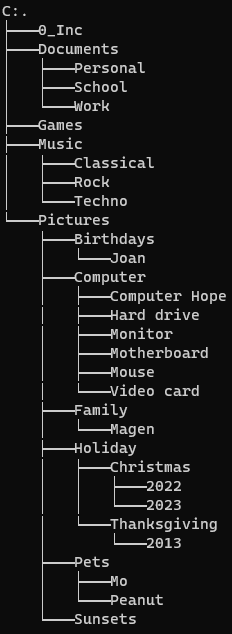
Start with a clean, logical foundation. A cluttered Documents folder leads to confusion—so create 5–8 broad, topic-based folders that reflect your core work areas.
Limit to 5–8 Core Topics for Clarity
Too few folders create overcrowding; too many cause decision fatigue. Stick to 5–8 main folders to balance coverage and simplicity.
Recommended office folder topics:
– Clients
– Finance
– Projects
– Operations
– HR & Payroll
– Marketing
– Legal
– Suppliers
Customize based on your role:
– Freelancers can replace HR & Payroll with Invoices.
– Managers may add Team Development.
– Avoid vague folders like “Misc” or “Old Files”—they become dumping grounds.
Sort Main Folders Alphabetically for Instant Access
Arrange all top-level folders alphabetically in File Explorer (Windows) or Finder (Mac). This ensures consistency across devices and users. When “Legal” is always between “HR & Payroll” and “Marketing,” retrieval becomes automatic.
Visual cue: If you can’t spot a folder within two seconds, reorganize until you can.
Organize Content Within Folders
With your core structure in place, decide how to manage files inside each folder. Two methods work best—choose one per folder based on use case.
Use Subfolders by Category (Best for Most Cases)
Break down main folders into logical subgroups to prevent clutter and improve navigation.
Examples:
– Clients → Active, Inactive, Prospects
– Finance → Invoices, Expenses, Taxes, Bank Statements
– Projects → 2024, 2025, Completed
– HR & Payroll → Contracts, Benefits, Onboarding
Pro tip: Keep subfolder names short and action-oriented. Avoid labels like “General” or “Stuff.”
Use Flat Structure Only with Perfect Naming
If you skip subfolders, you must use bulletproof file naming. Otherwise, you’ll drown in a sea of indistinct documents.
Imagine opening your Finance folder and seeing:
• invoice.pdf
• final_v2.pdf
• bank.pdf
Good luck finding anything.
Instead, enforce strict naming from day one.
Apply Date-First Naming for Time-Sensitive Files
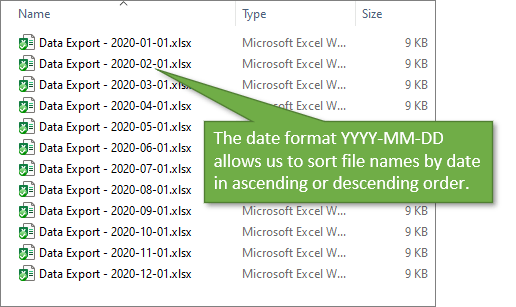
For records tied to dates—like invoices, reports, or meeting minutes—use a date-first format so files sort chronologically by default.
Format: YYYY-MM-DD Description
Example:
2024-03-15 Client invoice ABC Corp
Why this works:
– Files sort automatically in ascending or descending order.
– You see the date at a glance.
– Prevents confusion when saving a 2023 invoice in 2024.
Use this in:
– Finance
– Clients
– Projects
– Operations
Bonus: Add version numbers if needed:
2024-03-15 Client invoice ABC Corp v2
Avoid repeating the year in both subfolders and filenames—duplicate info creates redundancy.
Use Name-First Naming for Content-Driven Files
When the topic matters more than the date, prioritize clear description over chronology.
Format: Clear Description
Example:
Employee Handbook 2024 Final
This method relies on your OS’s built-in search and “Date Created” metadata. As long as the name is descriptive, you can find it fast.
Best for:
– HR & Payroll (e.g., Onboarding Checklist)
– Legal (e.g., NDA Template General)
– Marketing (e.g., Q2 Social Media Calendar)
Keep names concise but specific. Replace Contract with Vendor Contract Adobe Creative Cloud.
Combine Naming Systems Where Needed
No rule says you must use one naming style everywhere. Smart users mix conventions based on purpose.
Match Naming to Use Case
- In Finance, use
YYYY-MM-DDfor invoices and bank statements. - In HR, use descriptive names like
Performance Review Template. - In Projects, use both:
- Folder:
Project Phoenix - File:
2024-05-10 Project Phoenix Status Report
This hybrid approach gives you the best of both worlds: automatic sorting where needed, and keyword clarity where it counts.
Avoid Common File Management Mistakes
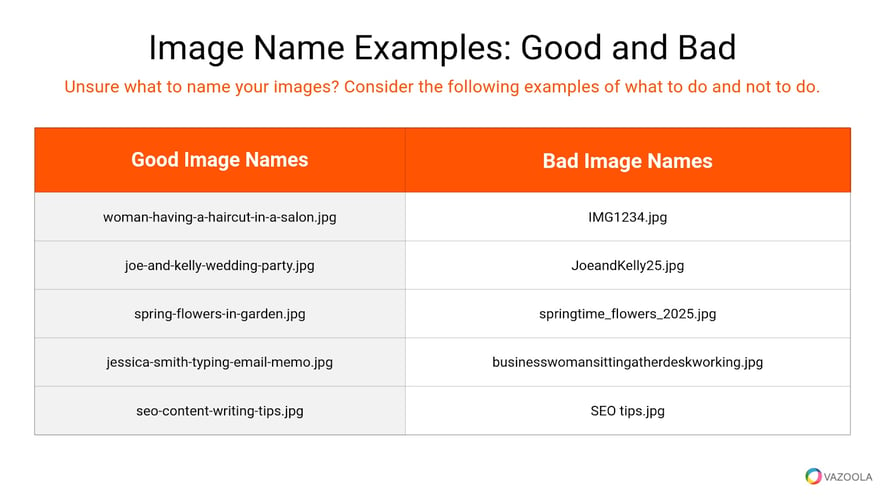
Even the best system fails if you ignore these pitfalls.
Never Use Vague File Names
❌ document_final.pdf
❌ notes.docx
❌ presentation_v3.pptx
These names are useless in six months.
✅ Fix: Rename immediately using your standard format.
2024-04-22 Board Meeting Notes
Q3 Sales Presentation Final
Avoid Excessive Folder Nesting
Don’t create paths like:
Documents > Work > Projects > 2024 > Q2 > Marketing > Social > Drafts > final
Too many layers slow you down. If you go beyond 3 levels deep, simplify.
Ideal depth:
Documents > Projects > 2024 > [Project Name]
Don’t Ignore Duplicate Files
Multiple versions cause confusion and errors.
✅ Fix: Delete outdated copies or move them to an “Archive” subfolder.
Keep only one current version in the main folder.
Label clearly:
2024-04-10 Service Agreement FINAL
Archive old: 2023-12-05 Service Agreement Expired
Schedule Weekly File Maintenance
A system only works if you maintain it. Dedicate 15 minutes per week to keep your files clean.
Run a Weekly Cleanup Routine
Every Friday at 4 PM—or your least busy time—do this:
1. Open each main folder one by one.
2. Scan for misnamed or misplaced files.
3. Rename using your standard format.
4. Move files to correct folders.
5. Delete duplicates or temporary files.
Time estimate: 10–15 minutes for most users.
Pro tip: Use keyboard shortcuts (F2 to rename, Ctrl+C/V to copy) to speed things up.
Use Search Effectively
Modern operating systems have powerful search tools. But they only work if your files are named well.
Search Smart with Keywords
Need last quarter’s budget? Type:
budget Q1 2024
Looking for a client contract? Try:
contract client ABC Corp
Your OS will find matches instantly—if your names include those keywords.
Enable search indexing in Windows or Spotlight on Mac for fastest results.
Automate Your Backup System
Organization means nothing if you lose everything in a crash.
Enable Cloud Sync
Use one of these:
– OneDrive (best for Office 365 users)
– Google Drive (ideal for G Suite teams)
– Dropbox (simple, reliable)
All sync your Documents folder automatically and protect against hardware failure.
Add a Local Backup (Optional but Smart)
Use an external hard drive with File History (Windows) or Time Machine (Mac) for a second copy.
Set it to run nightly. No action needed once configured.
Standardize File Management Across Your Team
If you’re in a shared office, consistency is critical.
Train Everyone on the Same System
Hold a 30-minute session to teach all team members:
– The 8 core folder names
– Which naming style to use where
– How to file new documents
Create a one-page cheat sheet and pin it digitally (e.g., in Teams or Slack).
Audit Monthly for Compliance
Once a month, spot-check team folders. Look for:
– Misplaced files
– Poor naming
– Duplicate folders
Gently correct and retrain. Over time, the system becomes second nature.
Pass the Cookie Test for Usability
Ask yourself:
“Can I find this file in five years—like a child finding cookies in the kitchen?”
If yes, your system works.
If no, simplify.
This “Cookie Test” is the ultimate measure of usability. Great file management isn’t about perfection—it’s about predictability. If you always know where to look, you’ll never lose a file again.
Maintain Records for Compliance and Security
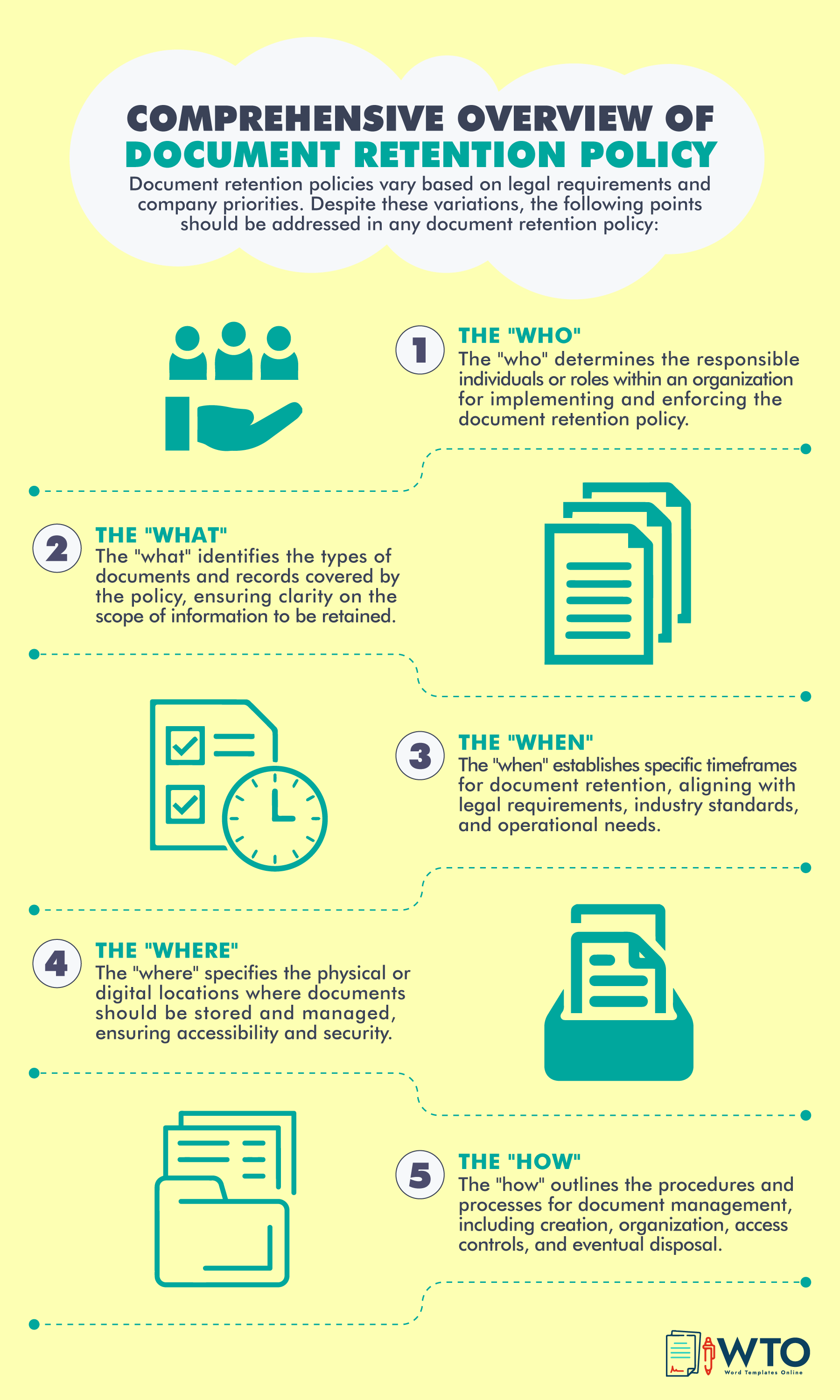
In many industries, how you maintain files and records in office settings affects legal and regulatory compliance.
Follow Document Retention Rules
Different files have different retention periods:
– Invoices & receipts: Keep 7 years (IRS recommendation)
– Employee records: 3–7 years after termination
– Contracts: 6+ years after expiration
– Tax returns: Indefinitely (or at least 7 years)
Create an “Archive” subfolder under each main folder to store expired but retained files.
Example:
Finance > Archive > 2019 Taxes
Protect Sensitive Data
Not all files should be freely accessible.
✅ Do this:
– Password-protect sensitive PDFs
– Store confidential files in encrypted folders
– Use access controls in cloud storage (e.g., Google Drive sharing settings)
Never store unsecured personal data (SSNs, bank details) in shared folders.
Key Takeaways for Maintaining Office Files and Records
You now know how to maintain files and records in office environments the smart way. Here’s how to keep it working for years.
Start Small and Scale Gradually
Begin with just 5 folders and two naming rules. Master them before adding complexity.
You can always expand—but start lean.
Think Like a New Hire
When naming or organizing, ask:
“Would someone new understand this?”
If not, rename or restructure.
Update Files in Real Time
Don’t wait for “Cleanup Day.”
Rename a file the moment you see a bad name.
Fix one thing each time you open a folder.
Review Every 6 Months
Business changes. So should your system.
Every six months, check:
– Are any folders empty or overloaded?
– Are team members following the rules?
– Is search working well?
Tweak as needed. Evolution beats overhaul.
Frequently Asked Questions About How to Maintain Files and Records in Office
How many main folders should I create for office file organization?
Create 5–8 main folders based on core work topics like Clients, Finance, Projects, and HR. This balance prevents clutter while ensuring coverage. Too few folders lead to overcrowding; too many cause confusion.
What is the best file naming convention for office records?
Use YYYY-MM-DD Description for time-sensitive files like invoices and reports. For content-driven files like templates or handbooks, use clear descriptive names like Employee Handbook 2024 Final. Match the naming style to the file type.
How often should I clean up my office files?
Schedule a 15-minute weekly cleanup. Review folders, rename mislabeled files, delete duplicates, and move misplaced documents. Regular maintenance prevents buildup and keeps your system functional.
How do I organize files for team collaboration?
Standardize folder names, naming rules, and structure across all team members. Train everyone, create a cheat sheet, and audit folders monthly. Consistency ensures everyone can find what they need.
How long should I keep office records?
Follow retention guidelines: keep invoices 7 years, employee records 3–7 years after termination, contracts 6+ years, and tax returns at least 7 years. Store expired files in an “Archive” subfolder.
How can I make sure I never lose an important file?
Use a predictable system: topic-based folders, consistent naming, and automatic backups. Apply the “Cookie Test”—if you can’t find a file quickly, simplify. Also, enable cloud sync and local backups for full protection.
Practical Next Steps for Organizing Your Office Files
You now have a complete, actionable system for how to maintain files and records in office environments. Start today:
• Create your 5–8 core folders
• Choose naming conventions for each
• Set a weekly 15-minute cleanup reminder
Do this, and you’ll spend less time searching and more time doing real work.