
Is your Microsoft Office acting up? Are you unsure if you’re running the latest version or whether your subscription is still active? You’re not alone. Millions of users rely on Word, Excel, and PowerPoint daily—but few know how to quickly check their Microsoft Office version on a laptop, a crucial step for compatibility, security, and feature access. Whether you’re using a Windows PC or Mac, the process is fast and simple. In this guide, you’ll learn multiple reliable methods to find your Office version, understand what the numbers mean, and verify your license status—no technical expertise required. By the end, you’ll be able to identify your edition (Microsoft 365, Office 2024, etc.), determine if updates are pending, and troubleshoot installation issues with confidence.
Open Any Office App to Find Version (Fastest Method)

The quickest way to check your Microsoft Office version is directly within any installed application like Word, Excel, or PowerPoint. This method works across both Windows and Mac and gives detailed product information in seconds.
File > Account Method (Windows)
- Launch Word, Excel, or PowerPoint
- Click the File tab in the top-left corner
- Select Account from the left sidebar
- Under Product Information, you’ll see:
• Product name (e.g., Microsoft 365 Apps, Office 2024)
• Version and build number (e.g., Version 2402, Build 17128.20264)
• Installation type (Click-to-Run or Windows Installer)
• Activation status
💡 Pro Tip: If “Account” isn’t visible, choose Help instead—older versions use this layout.
View Bit Version and Full Details
To check whether you’re running 32-bit or 64-bit Office:
- In the same Account screen, click About [App] (e.g., About Word)
- A pop-up shows:
• Full version string
• Bit architecture (32-bit or 64-bit)
• Copyright and license info
This is essential when installing add-ins or troubleshooting performance issues.
Check Office Version on Mac Using Help Menu
Mac users can quickly find their Office version using the Help menu—a direct path that bypasses multiple screens.
About [App] Dialog Box
- Open Word, Excel, or PowerPoint on your Mac
- Click Help in the top menu bar
- Choose About [Application] (e.g., About Excel)
- A window appears showing:
• Full version number
• Build details
• Bit version (32-bit or 64-bit)
⚠️ Note: Subscription-based Mac installations will display “Microsoft 365 Subscription” under license type.
Alternative: Check Account for License Info
- Go to File > Account
- Review:
• Subscription status
• Product name (e.g., Microsoft 365 Family)
• Update options
This helps confirm your subscription is active and up to date.
Find Office Version via Windows Settings (No App Needed)
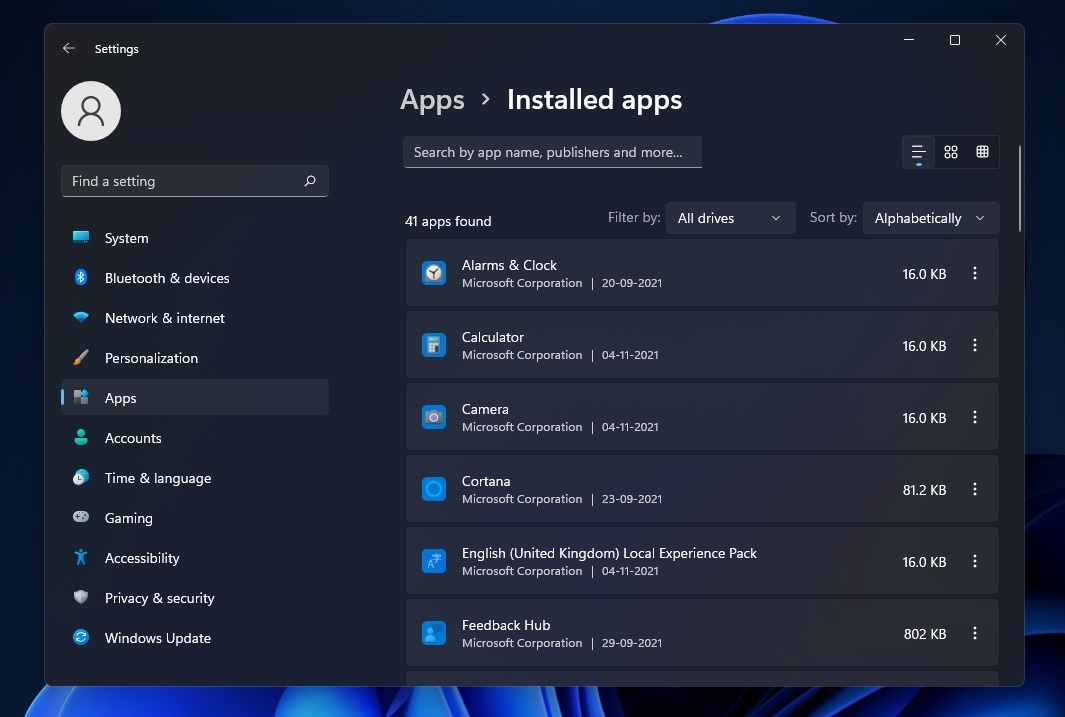
If you prefer system-level tools over opening an app, Windows Settings provides a clean, modern interface to view installed software.
Apps & Features Search
- Press Windows + I to open Settings
- Go to Apps > Installed apps
- Type Office in the search box
- Look for entries like:
• Microsoft 365
• Office 2024
• Microsoft Office Professional Plus
The listed name often includes the year or edition.
Expand for More Details
Click the three dots (⋯) next to the Office entry and select Advanced options (if available). Here you may find:
• Installation location
• Version number
• Publisher (should be Microsoft Corporation)
• Update settings
This method won’t show bit version but confirms presence and general version family.
Use Control Panel to Check Office Version (Legacy Windows)
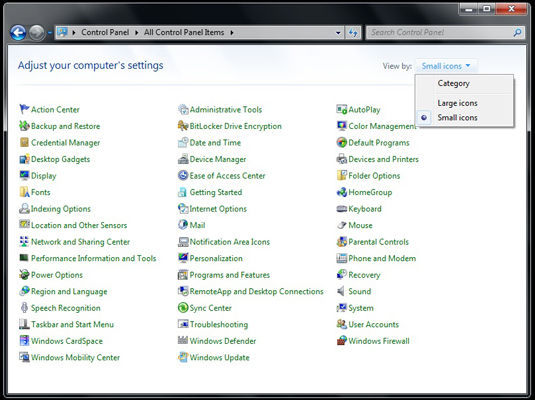
For older Windows systems or enterprise environments, Control Panel remains a reliable tool for checking installed programs.
Programs and Features List
- Open Control Panel (search via Start menu)
- Navigate to Programs > Programs and Features
- Scroll through the list and look for:
• Microsoft Office Professional Plus 2021
• Microsoft 365 for enterprise
• Office Home and Student 2024
The “Version” column displays the release year or number.
🔍 Visual Cue: Ensure the publisher says Microsoft Corporation—third-party entries may be fake or trialware.
Why This Matters
This method is especially useful if:
• Office apps won’t open
• You suspect multiple or corrupted installations
• You’re managing a work or school device
You can also repair or uninstall Office from here if needed.
Use Search and Command Line to Check Office Version
When GUI tools fail, built-in search and command-line utilities offer fast alternatives.
Windows Search Shortcut
- Press Windows + S
- Type Word, Excel, or PowerPoint
- Right-click the result and select Open file location
- This reveals the installation folder path, which may include version clues (e.g.,
Office16= Office 2016)
Use PowerShell (Advanced)
Run this command to list all Office-related software: