The phone rings, your screen flashes with options, and suddenly you’re not sure whether to tap, press, or swipe. You’re not alone—many professionals only use a fraction of their office phone’s capabilities. Knowing how to use an office phone correctly can prevent dropped calls, speed up communication, and boost your professional image.
Modern office phones do far more than make calls. Whether you’re using a VoIP desk phone, a 4G LTE model like Verizon One Talk, or a softphone app on your laptop, today’s systems offer call transfer, conferencing, voicemail-to-email, and remote access. This guide walks you through every essential function—based on real devices like Avaya 9608G, Wildix SuperVision, and Verizon Fios Business Digital Voice—so you can handle calls confidently from any location.
You’ll learn how to answer, hold, transfer, and park calls, run team conferences, set up remote work, and troubleshoot common issues—all with step-by-step instructions.
Choose the Right Office Phone System for Your Needs
Understand VoIP vs. Traditional Landlines
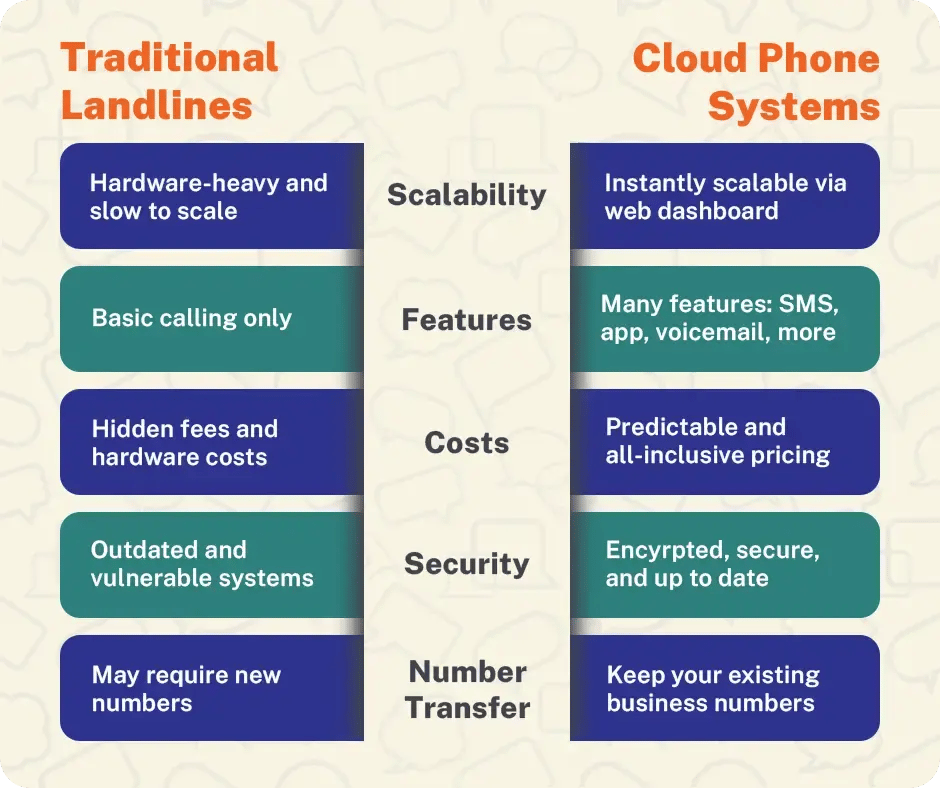
VoIP (Voice over IP) has replaced analog phone lines in most offices. Instead of copper wiring, VoIP uses your internet connection to transmit calls. This enables advanced features like remote calling, voicemail-to-email, and integration with Microsoft Teams.
Traditional analog phones can still work—but only with an Analog Terminal Adapter (ATA). Two-line analog phones are now outdated due to VoIP’s flexibility, lower cost, and cloud-based management.
Compare Top Business Phone Systems
Three major platforms dominate modern offices:
- Verizon One Talk: Works over 4G LTE—no internet needed for desk phones. Ideal for remote workers and agencies needing secure, mobile-first communication.
- Fios Business Digital Voice: Cloud-based VoIP bundled with Fios internet. Includes E911 backup and fax support via ATA.
- Wildix & Avaya IP Phones: Feature-rich desk phones with touchscreens, programmable buttons, and full business integration.
Choose based on your priorities: remote access, security, or in-office performance.
Select Compatible Devices
You don’t need a desk phone to use your office system. Supported devices include:
• IP phones ($85+)
• Smartphones via app
• Tablets and desktops (softphones)
• Analog phones (with ATA)
Warning: Never plug an IP phone into an ATA—this will not work. Also, VoIP does not support alarm, security, or medical monitoring lines.
Make Outgoing Calls From Any Device
Dial a Number Using Your Office Phone
To place a call:
1. Lift the handset, press Speaker, or tap the dial pad on a touchscreen.
2. Enter the number or extension.
3. Press Call or tap the green icon.
Most modern systems auto-detect internal vs. external calls. Some may require a prefix (like “9”) to dial out, but this is rare with VoIP.
Use Speed Dial and Company Contacts
Save time with stored contacts:
• On Wildix SuperVision, search the PBX directory by name and tap to call.
• On W-Air Basic2, use speed dial buttons or browse the company phonebook.
• In One Talk app, sync mobile contacts or pull from the corporate directory.
Pro Tip: Label speed dials clearly (e.g., “Sales Lead” or “IT Support”) to avoid mistakes.
Answer Incoming Calls the Right Way
Use Avaya Phone Answer Options
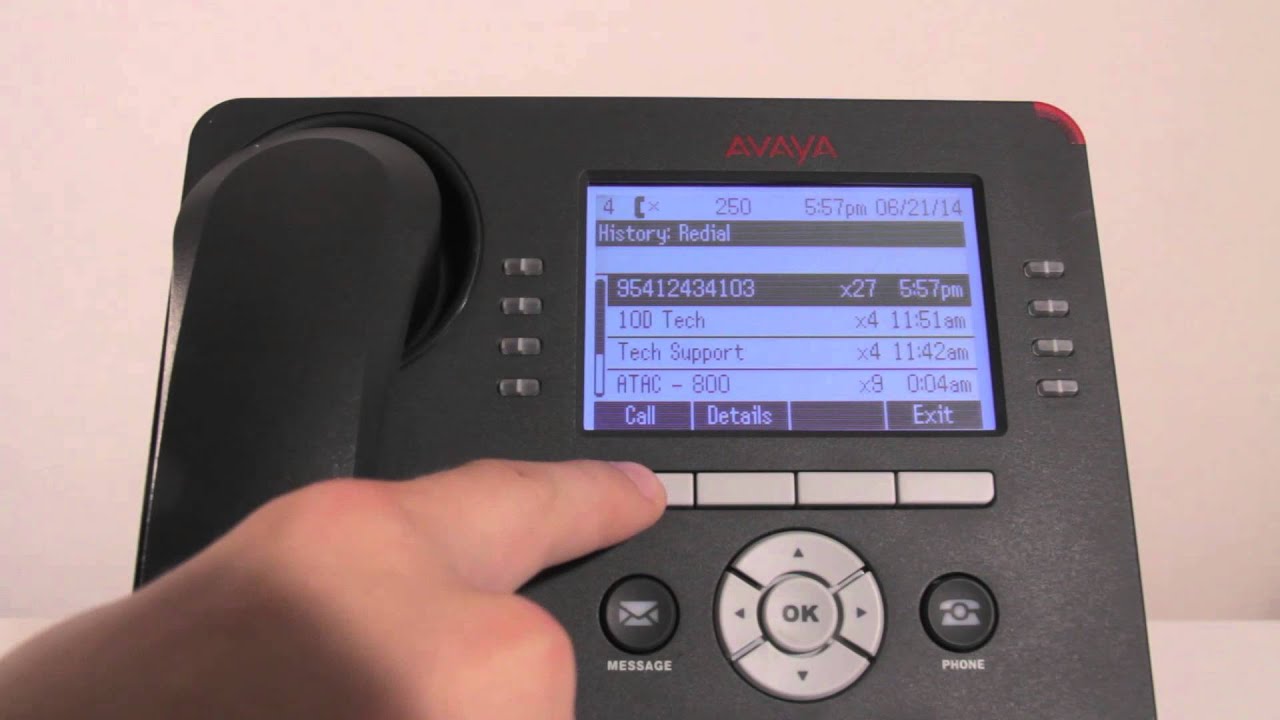
When a call comes in, your Avaya phone displays:
• Answer – Connect the call
• Send to Voicemail – Route caller to your mailbox
• Ignore – Dismiss silently
• Silence Ringer – Mute alert tone
You can answer by:
• Pressing the Answer button
• Lifting the handset
• Pressing Speaker
After answering, the call appears on your A call appearance button—this helps track active calls.
Manage Multiple Call Lines
If you have multiple call appearances (A, B, C), each represents a separate active or on-hold call. Flashing lights indicate which line is active or waiting.
Hold and Retrieve Calls Without Dropping
Put a Call on Hold
During a call:
1. Press the Hold button.
2. The caller hears music on hold.
3. Your call appearance light begins flashing.
You can now make another call using your B appearance.
Retrieve a Held Call
To resume:
• Press the flashing call appearance button.
• Or select the call from the screen and press Resume.
Multiple calls can be held—just ensure you return to the correct one.
Transfer Calls Like a Professional
Perform a Blind Transfer
Transfer without speaking to the recipient:
1. Press Transfer.
2. Dial the extension or number.
3. Press Complete or hang up.
The caller connects immediately. Use this for quick internal transfers.
Use Announced Transfer for Better Service
Ensure the recipient is ready:
1. Press Transfer.
2. Dial the person.
3. When they answer, say: “I have a call for you—okay to transfer?”
4. Press Complete to connect.
This prevents dropped calls and improves professionalism.
Send a Call Directly to Voicemail
Skip the ring:
1. Press the Message button (not Transfer).
2. Enter the extension number.
3. Press Select.
The caller goes straight to voicemail—ideal when someone is unavailable.
Run Conference Calls with Multiple Participants
Start a 3-Way Conference on Avaya Phones
1. Begin with one active call.
2. Press Conference—the first call is placed on hold.
3. Dial the second person using your B appearance.
4. Once connected, press Conference again to merge.
Repeat to add more participants.
Control Conference Participants
During the call:
• Press Details to see all participants.
• Press Mute to silence a line.
• Select a participant and press Drop to remove them.
This gives full control during team discussions or client calls.
Park Calls for System-Wide Access
Use Global Call Parking
Need to step away? Park the call so anyone can answer:
1. With a call active, press Park.
2. The Park button flashes on every phone in the office.
3. Any user can press the flashing button to retrieve it.
Best uses:
• Hand off a call to a colleague
• Move from desk to meeting room
• Let reception redirect the call
Also known as Global Hold, this is perfect for team environments.
Dial and Manage Internal Extensions
Call Someone Using Their Extension
To reach a colleague:
• Dial their extension directly (e.g., 1001)
• Or dial the main number and enter the extension when prompted
Extensions simplify internal calls and keep personal numbers private.
Follow Extension Best Practices
• Keep numbers short (3–4 digits)
• Avoid emergency numbers (911, 112) as extensions
• Assign logical ranges (e.g., Sales = 2000s, IT = 3000s)
Modern systems allow easy reassignment and auto-provisioning.
Master Advanced Office Phone Features
Monitor Team Availability with BLF Keys
Busy Lamp Field (BLF) buttons show real-time status:
• Green = Available
• Red = On a call
• Flashing = Incoming call
If enabled, you can see who’s free and transfer calls appropriately—reducing hold times.
Set Up Voicemail and Auto-Receptionist
Ensure no call is missed:
• Record a professional greeting
• Enable voicemail-to-email to receive transcriptions
• Use auto-receptionist to route calls (e.g., “Press 1 for Sales”)
Access settings via your My Account portal or phone menu.
Enable Remote Office Mode
Work from anywhere:
• Download the One Talk or Business Digital Voice app
• Sign in with your business number
• Set your phone to ring on multiple devices
You’ll appear as if calling from the office—even on your mobile.
Set Up Your Office Phone in 5 Steps
Install Fios Business Digital Voice
- Check internet speed – Minimum 5 Mbps recommended
- Get equipment – IP phone or ATA for analog phones
- Connect hardware – Plug IP phone into network port
- Configure online – Log into My Account to set up forwarding, voicemail, etc.
- Enable remote access – Download app and sign in
Fios bundle customers get discounts and priority support.
Activate Verizon One Talk
- Download the app – iOS or Android
- Sign in – Use your business credentials
- Set features – Turn on call forwarding, voicemail, MFA
- Use across devices – Make calls from phone, tablet, or 4G LTE desk phone
No internet needed for 4G models—ideal for weak Wi-Fi areas.
Troubleshoot Common Office Phone Problems
Fix Poor Call Quality
Symptoms: Static, echo, dropped calls
Solutions:
• Weak internet → Upgrade if below 5 Mbps
• Wi-Fi interference → Move base station; reduce obstructions
• DECT range limits → Keep cordless phones within 300 meters
• Jitter or latency → Use QoS settings to prioritize voice traffic
Use wired Ethernet when possible.
Resolve Connectivity Issues
If phone won’t connect:
• Reboot the device
• Check network cable or Wi-Fi signal
• Verify phone is within range of base station
• Contact support if issue persists
For media gateway issues, perform a full system reset.
Handle Hardware Failures
If the phone powers on but won’t register:
• Test with another port or cable
• Check for firmware updates
• Contact provider—many offer Hardware-as-a-Service (HaaS) with quick replacements
Wildix and Avaya systems support remote diagnostics.
Follow Best Practices for Efficiency and Security
Secure Sensitive Communications
For law enforcement or regulated industries:
• Enable multi-factor authentication (MFA) by October 1, 2024 (CJIS requirement)
• Use agency-issued devices over BYOD
• Encrypt all data in transit and at rest
• Enroll in Mobile Device Management (MDM) to remotely wipe lost devices
This protects criminal justice information (CJI).
Boost Daily Productivity
• Use speed dial for frequent contacts
• Enable call forwarding during meetings
• Park calls instead of transferring manually
• Sync office number with mobile app
Small habits improve workflow significantly.
Support Remote Work
• Use the mobile app to take office calls from home
• Turn on simultaneous ring
• Enable remote office mode to display your business number
Employees stay connected from anywhere.
Upgrade from Outdated Phone Systems
Recognize Legacy System Limitations
Old analog systems lack:
• Mobile integration
• Voicemail-to-email
• Remote access
• Secure encryption
They also suffer from poor scalability and frequent downtime.
Avoid Business Risks
Legacy systems lead to:
• Missed calls
• Inefficient routing
• Data security gaps
• High maintenance costs
Employees may use personal phones—creating compliance risks.
Migrate to Modern VoIP
Upgrade to gain:
• Crystal-clear audio
• Advanced features (conferencing, BLF, parking)
• Cloud management
• CRM and email integration
Start with a free trial or consultation to test compatibility.
Get Help and Keep Your System Running
Access Verizon Support Resources
• TechTeam App – Instant help for internet and phone issues
• 24/7 Support – Call 1-877-377-0181 for Business Digital Voice
• Online Help Center – Guides and setup videos at business.verizon.net
• Training Webinars – Live sessions via My Account portal
Support is included with most plans.
Port Your Number and Keep Fax
• Yes, you can keep your current number when switching
• Fax machines work with ATA, but limit faxes to under 5 pages
No need to change business cards or marketing materials.
Key Takeaways for Mastering Your Office Phone
Knowing how to use an office phone goes beyond answering calls—it’s about using technology to communicate clearly and professionally. From transferring calls with confidence to running seamless conferences and working remotely, modern systems give you the tools to stay connected and efficient.
Start by exploring your phone’s features, set up remote access, and train your team. The result? Fewer missed calls, smoother workflows, and better customer service—all from a device already on your desk.
Frequently Asked Questions About Office Phones
Can I keep my current business phone number?
Yes. You can port your existing number to Verizon One Talk or Business Digital Voice when switching providers. No need to update stationery or marketing materials.
Can I use my old analog phone with VoIP?
Yes, but only with an Analog Terminal Adapter (ATA). Plug your analog phone into the ATA, then connect the ATA to your network. Do not plug IP phones into an ATA—this will not work.
How do I fix poor call quality on my office phone?
Check your internet speed (minimum 5 Mbps), reduce Wi-Fi interference, use wired Ethernet, and ensure your phone is within range. For DECT phones, stay within 300 meters of the base station.
Can I make office calls from my mobile phone?
Yes. Use the One Talk or Business Digital Voice app to make and receive calls from your smartphone. Your business number appears to callers, and all features work remotely.
What is call parking and how does it work?
Call parking places a call in a system-wide holding zone. Press Park, then any colleague can retrieve it by pressing the flashing Park button on their phone. Ideal for handoffs and moving between locations.
Do I need special equipment for faxing?
Yes. Use an Analog Terminal Adapter (ATA) to connect your fax machine to a VoIP system. For best results, send faxes under 5 pages and avoid using VoIP for critical medical or security lines.