If your Avaya office phone has ever left you staring at the screen, unsure how to transfer a call or why a number won’t dial, you’re not alone. Millions of professionals rely on Avaya IP Office phones daily—but without clear guidance, even basic tasks like putting someone on hold or sending a caller straight to voicemail can feel confusing. This guide cuts through the complexity and delivers step-by-step instructions for using your Avaya phone with confidence—whether you’re on a 9608G, 1416, 9641G, or any other Avaya model.
You’ll learn how to make and answer calls, manage multiple lines, transfer and conference, use voicemail, set up speed dials, and troubleshoot common issues—all based on real device functionality. No jargon, no fluff—just practical, actionable steps that work across the Avaya 9600, 9500, 1400, and other series. By the end, you’ll be navigating your Avaya phone like a pro.
Master Your Avaya Phone Layout and Navigation
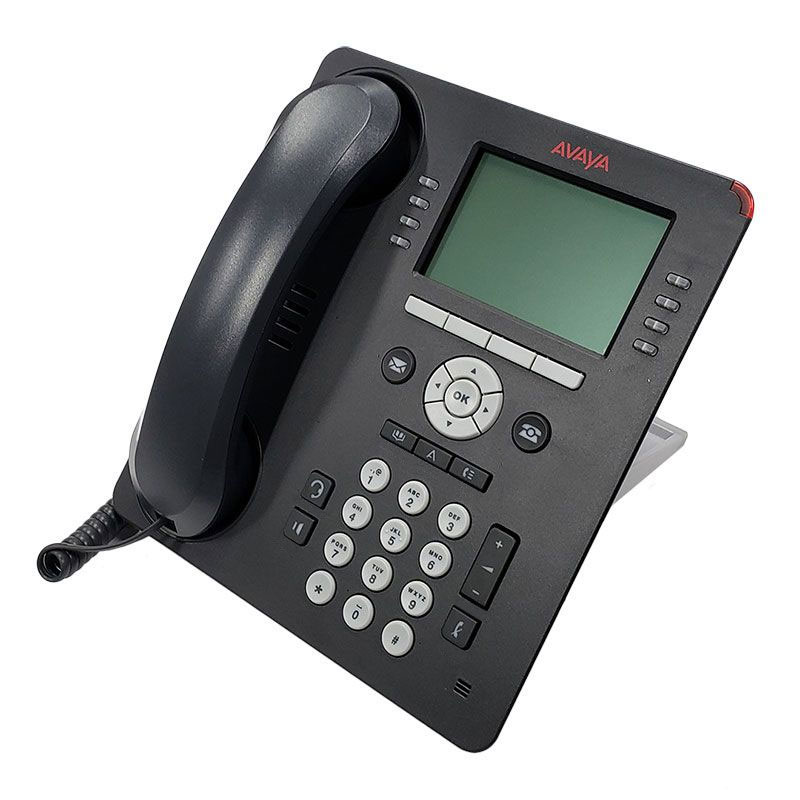
Use Call Appearance Buttons (A, B, C) for Multi-Call Management
These labeled buttons below your screen represent active calls. When you’re on a call, it appears on Line A. If another call comes in, it rings on Line B—flashing to alert you. To switch between calls:
- Press Hold on your current call
- Press the flashing Line B button to answer
- Return anytime by pressing Line A
You don’t need to manage lines manually—the phone routes them automatically. But knowing how A, B, and C work lets you handle multiple conversations smoothly.
Navigate with the Soft Keys Under the Screen
The four gray buttons under the display change function based on what you’re doing. Their labels appear on the bottom line of the screen. For example:
- Idle: Redial, Features
- On a call: Hold, Transfer, Conference, Drop
- In voicemail: Play, Delete
Always check the screen label—this tells you what each soft key does at that moment.
Return to Home or Scroll Through Menus
Use the navigation wheel (around the dial pad) to scroll through contacts, logs, or menus. Press it to select. If you get lost, press the Home button (phone icon) to instantly return to your main screen.
Make and Answer Calls on Any Avaya Model
Start a Call in 3 Simple Steps
- Pick up the handset, press Speakerphone, or dial directly
- Enter the extension (e.g., 1234)
- For external numbers, press 9 (or your system’s access code) before the number
No need to press a “call” button—dialing starts the call automatically.
Answer Incoming Calls with One Touch
When a call comes in, you have three options:
- Press Answer
- Lift the handset
- Press Speakerphone for hands-free
The call appears on Line A. If you’re already on a call, the next one rings on Line B.
Return Missed or Recent Calls Quickly
- Press the Call History button (clock icon)
- Select Missed, Incoming, or Outgoing
- Highlight a number and press Call
Pro Tip: For external numbers, press 9 before selecting the call—even if it’s in your log.
Handle Multiple Calls Like a Pro
Put a Call on Hold in One Step
- Press the Hold softkey
- The caller hears music; their line button flashes
- Make another call or answer a new one
To resume, press the flashing line button. You can hold multiple calls at once.
Switch Between Active Calls Instantly
While on Line A and holding Line B:
- Press the Line B button to switch
- Press Hold to return to Line A
No need to hang up—just toggle between lines using the A/B/C buttons.
Transfer Calls Correctly Every Time
Blind Transfer: Send a Call Immediately
- Press Transfer
- Dial the extension or external number (include 9)
- Hang up or press Complete
The call goes straight through. If unanswered, it goes to voicemail.
Announced Transfer: Confirm Before Sending
- Press Transfer
- Dial the recipient
- Wait for them to answer
- Say, “I’m transferring someone to you—okay?”
- Press Complete to connect
This ensures the person is ready and prevents dropped transfers.
Send a Call Directly to Voicemail
Use this when you know the person is unavailable:
- Press the Message button (envelope icon)
- Enter the extension
- Press Select
The call bypasses ringing and goes straight to voicemail.
Shortcut: Dial # before an extension (e.g., #1234) to send your own call directly to their voicemail.
Run Conference Calls with Ease
Add a Third Person to Your Call
- Press Conference during your current call
- Dial the next person (internal or external)
- When connected, press Conference again
All parties are now connected. The call appears on one line—no need to manage A/B/C.
Manage Conference Participants
- Press Details to see all callers
- Select a participant and press Mute to silence them
- Select and press Drop to remove someone
You can add more people by repeating the process.
Park Calls for Later Retrieval
Park a Call from Any Desk
- Press a Park button (e.g., Park 1)
- The button flashes on your phone—and on all phones in the system
- Hang up
The call is now in a shared holding zone.
Retrieve a Parked Call from Any Phone
Go to any Avaya phone, press the flashing Park button, and you’re connected. Ideal for:
- Handing off calls between desks
- Moving a call to a conference room
- Letting a colleague pick up when you’re away
Access and Use Voicemail Efficiently
Check Your Messages in Seconds
- Press the Voicemail button (envelope icon)
- Follow prompts to play, save, or delete
- Use soft keys: Play, Delete, Save
Your system may require a PIN the first time.
Send a Caller Straight to Voicemail
Instead of transferring and waiting:
- Press Message
- Enter the extension
- Press Select
This skips ringing and sends the call straight to voicemail.
Force Voicemail When Dialing
Dial # before the extension (e.g., #1234). The call goes directly to voicemail—no waiting for four rings.
Control Incoming Calls with DND and Forwarding

Activate Do Not Disturb (DND)
Stop all incoming calls instantly:
- Press the DND button
- A green light confirms it’s active
- All calls go straight to voicemail
To disable, press DND again.
Note: You’ll hear a busy tone when going off-hook—this is normal. To make outgoing calls, dial 9 + number.
Forward Calls to Another Number
Use this when covering for someone or working remotely:
- Press Forward
- Enter the destination (extension or external number)
- Press Save
- The FWD light turns on
To toggle forwarding on/off, press the FWD button.
For external numbers: Include the access code (e.g., 9) before the number.
Find and Save Contacts Fast
Search the Built-In Directory
- Press Contacts
- Use the keypad to spell a name:
– Press 5,6,4 for “John”
– Press 2,4,7 for “Bistro” - Highlight and press Call
The directory includes all internal extensions.
Add Personal Contacts with Access Code
- Press Contacts
- Scroll to Personal Contacts
- Press New
- Enter name and number
Critical: For external numbers, start with 9 (or your access code). Without it, the system treats it as an extension.
Pin Frequent Contacts to the Top
Add a 0 at the start of the name (e.g., “0Doctor”). Since numbers sort before letters, it appears at the top of your list.
Customize Your Phone Settings
Access the Configuration Menu
Press the “A” button (symbol looks like a menu icon). From here, you can adjust:
- Ringer volume and type
- Screen brightness
- Backlight duration
- Headset and speaker levels
- Personal ringtone patterns
Settings vary by model. On 1416/1408 phones, you can also adjust audio and call settings.
Reset or Reboot If Stuck
If your phone freezes or shows a login screen:
- Enter your 4-digit extension
- Press OK
- Enter 1234 (default password)
- Press OK
The phone should log in and return to normal.
If lost in menus, press the Home (phone) button to return instantly.
Dial External Numbers Correctly
Use the Access Code Every Time
Most systems require 9 (or 8 at some institutions) to reach an outside line. Always include it when:
- Dialing an external number
- Adding an external contact
- Transferring to a mobile number
- Calling back from call log
Without the access code, the system thinks you’re dialing an extension.
Know Your Institution’s Access Code
| Organization | Access Code |
|---|---|
| Most systems | 9 |
| Richland Community College | 8 |
Check with your IT team if unsure.
Identify Callers and Sources at a Glance
Read Caller ID Information
When a call comes in, the display shows:
- Internal caller: Name + extension
- External caller: 10-digit number
- Transferred call: 8765309>Alice Smith means Alice is transferring an outside call to you
- Group call: Shows the main number and current location (e.g., “Main Line > Support”)
This helps you decide how to answer or whether to transfer.
Fix Common Avaya Phone Issues Fast

Phone Asks for Login After Reboot
After a system reboot:
- Enter your 4-digit extension
- Press OK
- Enter 1234
- Press OK
If it fails, contact support.
No Dial Tone? Try These Fixes
- Check handset and cable connections
- Press Home to reset screen
- Try dialing 9—some systems only allow external lines when DND is on
Can’t Transfer or Conference?
- Ensure the feature is enabled by your admin
- Confirm you’re not in a restricted mode
- Restart by unplugging and replugging the network cable
Use Advanced Features Smartly
Create Speed Dials with the Zero Trick
To create a speed dial:
- Add a contact in Personal Contacts
- Name it 0Home, 0Cell, or 0Manager
- It appears at the top of your list—just scroll and call
No need for programmed buttons.
Mute During Sensitive Conversations
Press Mute to silence your microphone. The button lights red when active. Others can’t hear you, but you can still listen.
Use during:
- Background noise
- Private discussions
- Quick side conversations
Adjust Volume by Call Mode
The volume button changes function based on context:
- Ringing: Adjusts ringer volume
- Handset call: Adjusts earpiece volume
- Speakerphone: Adjusts speaker volume
- Headset: Adjusts headset volume
One button, four uses—no need to dig into menus.
Frequently Asked Questions About Avaya Office Phones
How do I transfer a call without talking to the recipient?
Press Transfer, dial the number (include 9 for external), then hang up or press Complete. This is a blind transfer and sends the call immediately.
Why does my phone show a login screen?
After a system reboot, phones may not auto-login. Enter your 4-digit extension, press OK, then enter 1234 as the password and press OK again.
How do I send a call directly to voicemail?
Press the Message button, enter the extension, and press Select. Or dial # before an extension (e.g., #1234) to go straight to voicemail.
What does the red light on my Mute button mean?
A red light means your microphone is muted. Others cannot hear you, but you can still hear them. Press Mute again to turn it off.
How do I get out of a menu on my Avaya phone?
Press the Home button (phone icon) at any time to return to your main screen. This works from any menu or settings screen.
Why won’t my external calls go through?
You likely forgot the access code. Always press 9 (or 8 at some institutions) before dialing an external number. Without it, the system treats it as an extension.
Key Takeaways for Using Your Avaya Office Phone
You now know how to make, answer, hold, transfer, and conference calls on any Avaya model. You can manage voicemail, set up speed dials, park calls, and customize your settings. Remember to always use the access code (9 or 8) for external numbers, and use # before an extension to go straight to voicemail.
Bookmark this guide for quick reference. Share it with your team to improve office communication. If you’re still stuck, contact your IT support or use the 24/7 Network Telecom line at 1-866-764-7866 for expert help.