Sitting for hours at a desk shouldn’t mean back pain, fatigue, or discomfort. Yet, many people settle for office chairs that look good but fail to support healthy posture. The right office chair is more than a place to sit—it’s a critical tool for productivity, focus, and long-term health. With so many options on the market, how to choose an office chair that truly fits your body, work style, and workspace can feel overwhelming. This guide cuts through the noise, focusing on what matters: adjustability, ergonomics, and durability. You’ll learn how to match your body type, desk setup, and daily tasks to a chair that supports you—hour after hour.
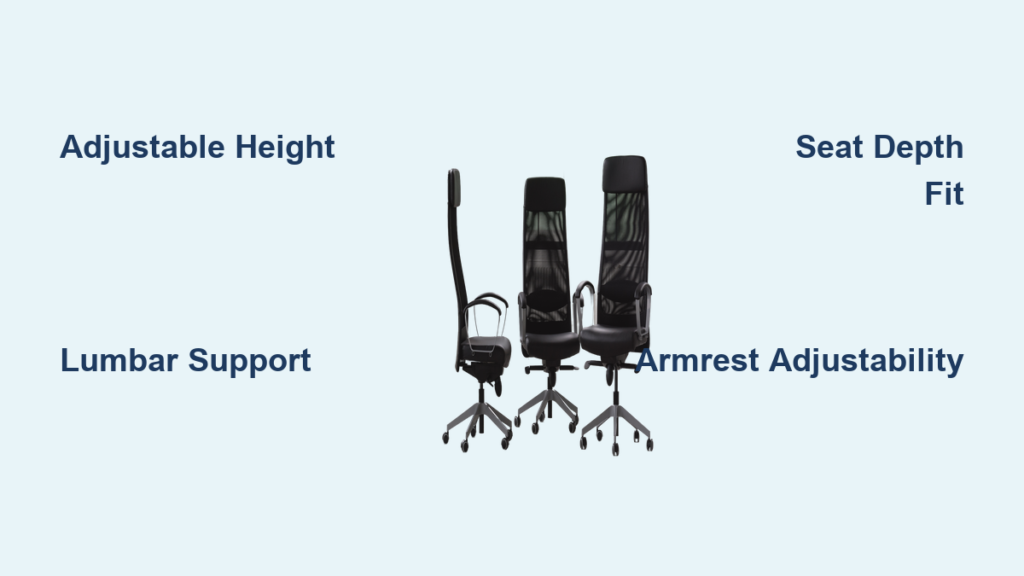
Whether you’re working from home, in an office, or managing chronic back issues, the right chair can prevent strain, improve posture, and make your workday more comfortable. We’ll walk you through key features like lumbar support, seat depth, armrest adjustability, and material choices—backed by ergonomic principles and real-world usability. By the end, you’ll know exactly what to look for, test, and avoid when buying your next office chair.
Match Your Body and Work Style to the Right Chair
Determine Your Posture and Frame Needs
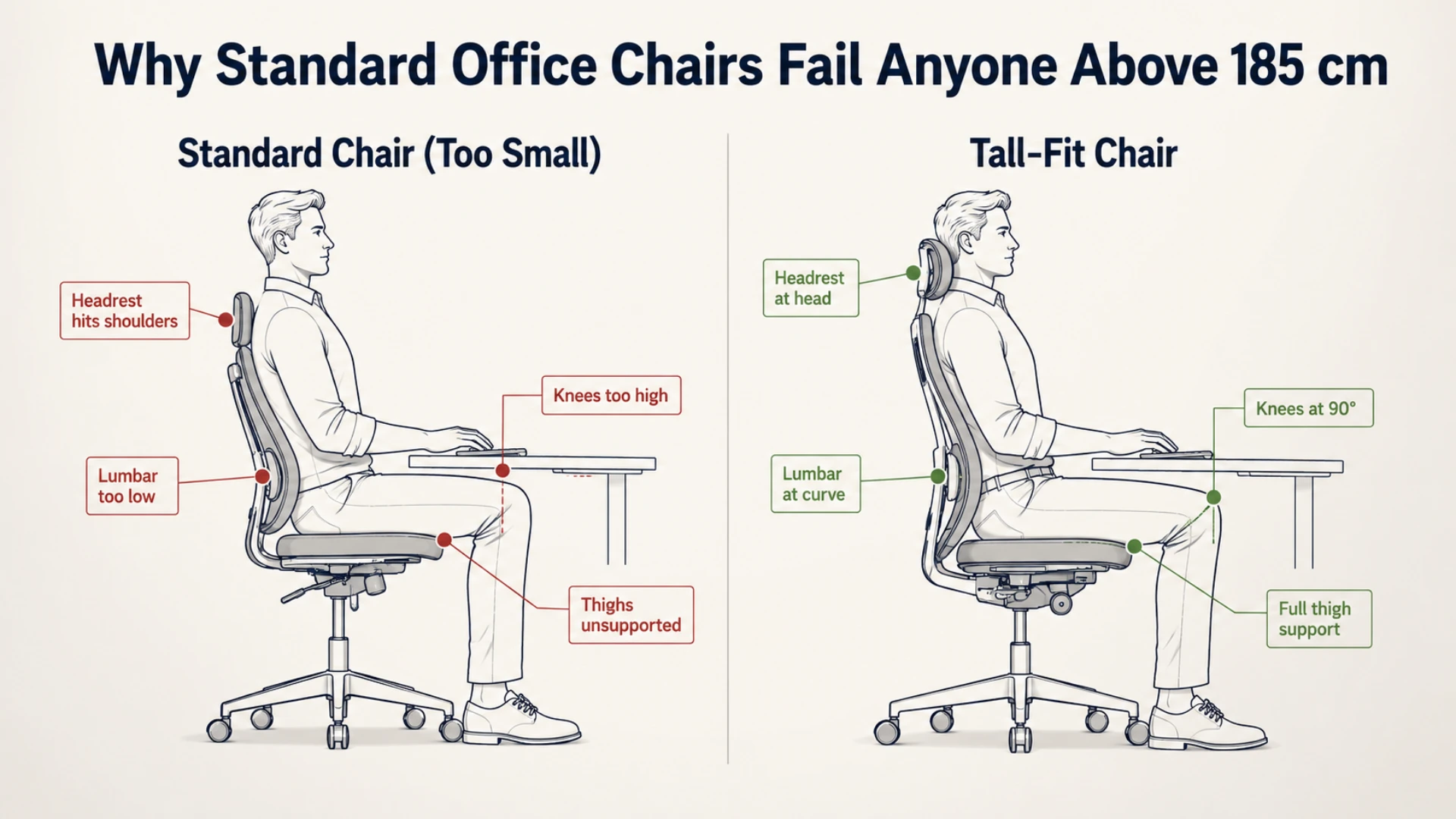
Your height, weight, and natural sitting posture directly impact which chair will support you best. Taller users (over 6 feet) need a seat height range of at least 20 inches and an adjustable seat depth to support longer thighs. Shorter users (under 5’4″) should look for chairs with a minimum seat height of 16 inches or lower so feet stay flat on the floor. If you experience lower back pain, prioritize chairs with strong, adjustable lumbar support that aligns with your spine’s curve. Avoid models where the backrest ends below the shoulder blades—this encourages slouching and increases fatigue.
Align the Chair with Your Daily Work Habits
How you work determines the ideal chair features. Frequent computer users benefit from recline functionality and dynamic back support to shift positions subtly. Call center workers or those on long video calls need high-back support and a headrest to prevent neck strain. Designers, artists, or multitaskers who switch between tasks often prefer a swivel base and low seat height for better mobility. If you alternate between sitting and standing, ensure the chair adjusts quickly to match your desk height without requiring readjustment each time.
Fit the Chair to Your Workspace Dimensions
Even the best chair fails if it doesn’t fit your environment. Measure your desk height—most standard desks are 29–30 inches—then confirm your chair can adjust so your elbows rest at 90 degrees when typing. For carpeted floors, choose soft-floor casters; hard floors require hard-floor casters to prevent scratches. In tight spaces, avoid oversized chairs with wide armrests that block movement. Ensure the chair fits fully under your desk when pushed in and allows easy access to drawers and peripherals.
Optimize Seat Pan Fit for Thigh Support and Comfort

Adjust Seat Depth to Prevent Knee Pressure
The seat pan should support at least three-quarters of your thigh length without pressing behind your knees. Look for adjustable seat depth, a key feature in ergonomic chairs, so you can slide the seat forward or back. If the pan is too long, it cuts off circulation; too short, and you lose thigh support. Aim for 1–2 inches of space behind your knees when seated fully. A waterfall front edge—curved downward at the front—reduces pressure on the back of the legs and improves blood flow during long sits.
Select the Right Seat Width for Hip Clearance
The seat should be at least 1 inch wider than your hips on each side. Too narrow, and you’ll sit on the edge, straining your thighs. Too wide, and you may slouch sideways, losing spinal alignment. If you need extra hip room—due to body shape or clothing like tool belts—look for an open seat-back gap, which allows space between the seat and backrest, preventing hip compression.
Test Cushioning for Long-Term Use
Low-density foam flattens over time, leading to discomfort and poor weight distribution. Opt for high-density foam or layered cushioning that retains shape. Mesh seats offer breathability but should have structured support—avoid flimsy mesh that sags. Always test the chair for 60–120 minutes of continuous sitting to assess real-world comfort. If possible, trial it over multiple days to catch issues like heat retention or pressure points.
Use Seat Tilt Only If You Lean Forward Often
Most users don’t need adjustable seat tilt, but it can help maintain balance if you lean forward frequently. A slight forward tilt (5–10 degrees) may reduce lower back strain during focused tasks. However, this feature is secondary to height and depth adjustability.
Set the Correct Seat Height for Proper Leg Alignment
Use a Pneumatic Lift for Easy Adjustment
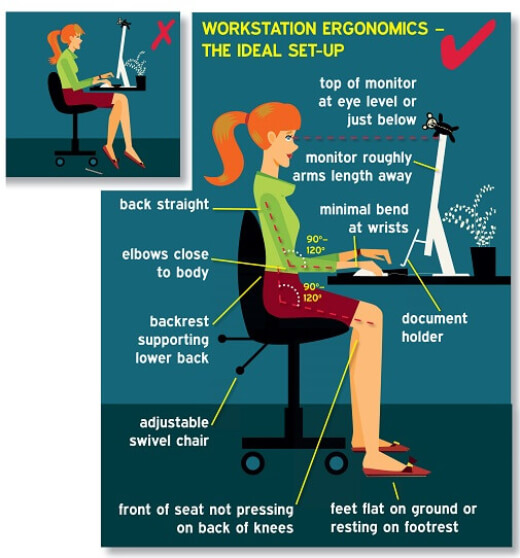
Choose a chair with a pneumatic (gas lift) mechanism—it lets you adjust height while seated. Look for a 16–22 inch range to accommodate both shorter and taller users. The lever should be easy to reach, typically on the right side under the seat. When adjusted correctly, your thighs should be parallel to the floor, knees at 90°–100°, and feet flat on the ground. If your feet dangle, use a footrest—but a well-fitted chair should rarely require one.
Avoid Outdated or Weak Adjustment Mechanisms
Mechanical height adjustments (like spinning bases) are outdated and inconvenient. Stick with gas lifts, and ensure the cylinder is rated for your weight—most support 250–300 lbs, but heavier users should verify specs.
Choose a Backrest That Supports Your Entire Spine
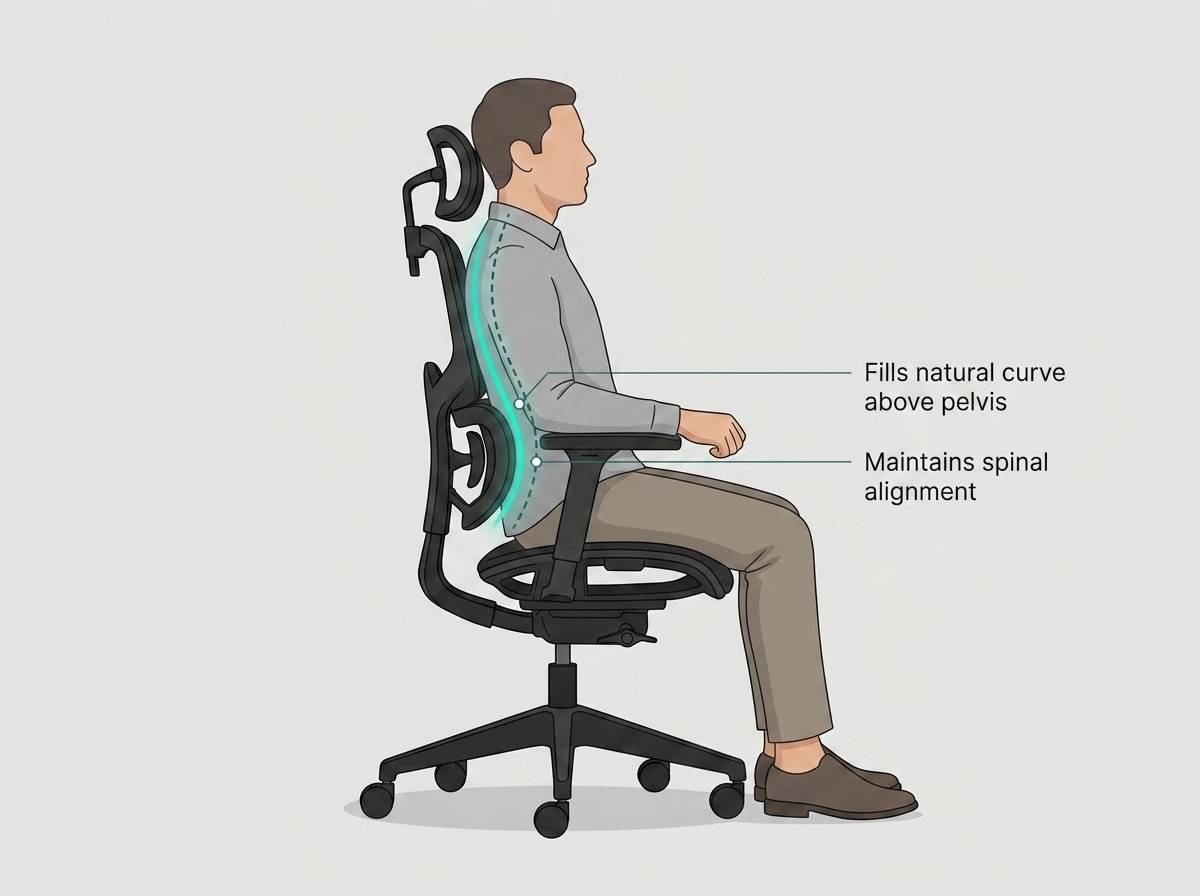
Ensure Full Spinal Coverage from Lumbar to Shoulders
The backrest should extend from your lower back to mid-shoulder blade level. High-back chairs offer the best support, covering lumbar, mid-back, and upper-back regions. Avoid models where the backrest ends just below the shoulder blades—this forces you to round your shoulders, leading to fatigue. If you recline often, a taller backrest or headrest adds neck support.
Pick an S-Shaped Backrest for Natural Spine Alignment
An S-shaped backrest mirrors the spine’s natural curve, reducing pressure on discs. The backrest should allow your elbows to move freely behind your torso without hitting the chair. Mesh backrests are popular for breathability, but only choose high-quality mesh with reinforced frames and integrated lumbar support—avoid cheap models that sag or create pressure points.
Use an Open Seat-Back Gap for Better Hip Mobility
An open space between the seat and backrest prevents hip pressure and allows full scooting back into the chair. This is especially helpful for users with broader hips or those wearing belts or holsters. It ensures your spine stays supported even when leaning back.
Customize Lumbar Support to Fit Your Spine

Choose Vertically and Horizontally Adjustable Lumbar Support
Lumbar support should be adjustable vertically and horizontally to match your spine’s curve. Start by placing it near your belly button, then fine-tune up or down based on comfort. Forward/backward adjustment lets you control how deeply the support presses into your lower back. If multiple people use the chair, adjustable lumbar is essential.
Accept Fixed Lumbar Only If It Feels Right
If you’re the sole user and the fixed lumbar pad feels supportive when you sit back, it may suffice. But most bodies vary, so adjustable is safer.
Add a Lumbar Cushion If Your Chair Lacks Support
If your chair lacks built-in support, use a separate lumbar cushion. Choose one with firm foam and a contoured shape that fits snugly into your lower back. Ensure it stays in place and doesn’t slide down.
Enable Dynamic Sitting with Recline and Tilt Control
Recline Slightly to Reduce Spinal Disc Pressure
Reclining slightly (100°–110°) reduces pressure on spinal discs. Look for chairs that allow smooth recline with backrest tracking—the backrest should move with your spine as you lean back. Avoid chairs that lock in one position; static sitting increases fatigue.
Adjust Tilt Tension Based on Your Weight
Tilt tension control lets you set how much effort it takes to recline. Lighter users may need low tension; heavier users need more resistance. Some chairs offer independent seat and backrest movement, enhancing comfort during dynamic sitting.
Recline Strategically During Breaks and Calls
Sit upright (90°–100°) during focused work. Recline slightly during calls or breaks to shift pressure and refresh posture. Use the recline lock sparingly—only for short tasks.
Optimize Armrests to Relieve Shoulder and Neck Strain

Use Armrests to Support Forearms Without Raising Shoulders
Proper armrests take weight off your shoulders and neck. They should support your forearms without raising your shoulders. Your elbows should rest at 90 degrees, arms close to your body. Keep wrists floating—never rest wrists on armrests while typing, as this can cause strain.
Choose 4D Adjustable Armrests for Maximum Fit
Look for armrests adjustable in height, width, depth (in/out), and angle. This ensures they fit your frame and desk setup. Wider users may need armrests that spread apart; shorter users need them closer. Avoid concave or sharp-edged designs—they compress nerves and blood vessels.
Move Armrests Aside When Typing or Mousing
When typing or mousing, you should be able to easily lift or swing armrests aside to avoid shoulder elevation. Some models offer 4D adjustment—up/down, in/out, forward/back, and pivot—for maximum customization.
Ensure Stability and Smooth Mobility
Use a 5-Point Base for Maximum Stability
A five-pedestal base offers superior stability and reduces tipping risk. Four-legged chairs are less stable, especially on hard floors. The base should be made of durable nylon or metal, rated for your weight.
Match Casters to Your Floor Type
- Carpeted floors: Use soft, wide casters (often black or gray).
- Hard floors (wood, tile): Use hard, narrow casters (often clear or hard plastic) to prevent scratches.
Replace casters if they scratch floors or roll poorly.
Choose Breathable and Durable Materials
Pick High-Tension Mesh for Long Work Sessions
Mesh backrests offer excellent airflow, reducing heat and sweat buildup. Ideal for warm climates or long workdays. But not all mesh is equal—choose structured, high-tension mesh with lumbar reinforcement. Avoid thin, sagging mesh that loses support.
Consider Upholstered Seats for Plush Comfort
Upholstered fabric or high-density foam seats offer plush comfort but may retain heat. Cloth upholstery is breathable but harder to clean. Vinyl or leather looks sleek but traps heat and can crack over time. For hybrid use, consider fabric seat with mesh back.
Prioritize Easy-to-Clean Surfaces
Spills happen. Vinyl and leather are spill-resistant and easy to wipe down. Cloth absorbs stains and may harbor allergens. If you eat at your desk, choose cleanable materials. Check if seat and back covers are removable or replaceable.
Verify Weight Capacity and Build Quality
Confirm the Chair Supports Your Weight
Check the manufacturer’s weight rating—typically 250–300 lbs. Heavy-duty chairs go up to 500 lbs. Ensure the gas lift is rated for your weight to prevent sinking or failure.
Read Reviews for Long-Term Durability
Look for user feedback on foam degradation, mesh sagging, or mechanism wear. High-density foam resists permanent deformation. Metal frames last longer than plastic. A 5-year warranty often signals confidence in durability.
Use a Footrest Only When Your Chair Doesn’t Fit
Avoid Footrests If Your Chair Is Properly Adjusted
A well-fitted chair should let your feet rest flat on the floor, thighs parallel to the ground. If your feet dangle, use a free-standing, floor-mounted footrest that allows a 90° knee angle. Avoid resting feet on the chair’s base—this restricts circulation and reduces knee angle.
Test the Chair Before Finalizing Your Purchase
Sit in the Chair for at Least 15 Minutes
Whenever possible, test the chair in person. Sit for at least 10–15 minutes in different positions—upright, reclined, slouched. Check if your lower back stays supported, thighs are comfortable, and armrests align with your elbows.
Perform an Extended Comfort Test at Your Desk
Ideal chairs feel good after 60–120 minutes of continuous use. If buying online, choose brands with long trial periods (30–100 days). Use it at your actual desk to assess real-world fit.
Verify Full Back and Thigh Contact
Sit all the way back—your lower back should touch the lumbar support, and thighs should be fully supported. If you’re perched on the edge, the seat is too short or too deep.
Maintain Healthy Sitting Posture Daily
Check All Key Angles After Setup
After setup, verify:
• Knees: 90°–100°
• Hips: 90°–100°
• Elbows: 90° when typing
• Back: Fully supported from lower back to shoulder blades
• Feet: Flat on floor or footrest
• Space behind knees: 1–2 inches
Adjust chair settings until all are met.
Pair Your Chair with an Ergonomic Desk Setup
Align Monitor and Keyboard for Neck and Wrist Health
Even the best chair fails without proper desk ergonomics. Set your monitor at eye level, 20–30 inches away. Position keyboard and mouse within easy reach, wrists straight, not bent. Use a keyboard tray if needed.
Keep Frequently Used Items Within Arm’s Reach
Frequently used items (phone, notepad, mouse) should be within arm’s reach to avoid twisting or leaning.
Frequently Asked Questions About Choosing an Office Chair
What is the most important feature in an ergonomic office chair?
The most important features are adjustable seat height, lumbar support, and seat depth. These allow you to align your spine, keep feet flat, and support your thighs—preventing strain during long sits.
How do I know if an office chair fits my body?
Sit all the way back: your lower back should touch the lumbar support, thighs fully supported, and 1–2 inches of space behind your knees. Elbows should rest at 90 degrees, and feet should be flat on the floor.
Should I choose a mesh or padded office chair?
Choose mesh for breathability during long workdays, especially in warm environments. Choose padded upholstery for plush comfort, but expect more heat retention. Hybrid models with mesh backs and fabric seats offer a balanced solution.
Can a bad office chair cause back pain?
Yes. Chairs without proper lumbar support, incorrect height, or poor adjustability force poor posture, leading to lower back pain, neck strain, and hip discomfort over time.
How much should I spend on a good office chair?
Expect to spend $250–$500 for a high-quality, durable ergonomic chair. Budget models often lack critical adjustments and degrade quickly. Investing in a well-built chair pays off in comfort and health.
Do I need armrests on my office chair?
Yes, if you use a keyboard and mouse. Armrests reduce shoulder and neck strain by supporting your forearms. But they should be adjustable and movable so you can type without elevated shoulders.
Key Takeaways for Choosing the Best Office Chair
The right office chair supports your body, fits your workspace, and adapts to your work habits. Prioritize adjustability, lumbar support, and proper fit over style. Test the chair for at least 60 minutes, verify all key posture angles, and pair it with an ergonomic desk setup. Invest in quality—your spine, focus, and long-term health depend on it.