Spending hours at a desk shouldn’t mean chronic back pain, fatigue, or poor posture. The right ergonomic office chair can transform your workday—boosting comfort, focus, and long-term spinal health. With so many options on the market, choosing the best one isn’t just about style or price. It’s about finding a chair that fits your body, supports your work habits, and prevents strain over time.
This guide cuts through the noise with actionable, evidence-backed advice. You’ll learn how to match chair features to your height, posture, and daily routine. From seat depth to lumbar support, armrest adjustability to material breathability, we’ll walk through every critical factor—so you can make a confident, informed decision. Whether you’re setting up a home office or upgrading your workspace, the right chair is an investment in your health, energy, and productivity.
Match Chair Dimensions to Your Height and Build

Your body size directly impacts how well a chair supports you. Choosing one that aligns with your proportions prevents slouching, pressure points, and long-term discomfort.
Set Seat Height Between 16–21 Inches
Use a pneumatic gas lift to adjust the seat so your feet rest flat and knees sit level with or slightly below your hips.
– This range fits most adults from 5’2″ to 6’2″.
– Taller users need chairs with maximum seat heights of 21 inches or more to avoid leg compression.
– Shorter users should confirm the minimum height goes down to 16 inches to keep feet grounded without dangling.
– If your feet don’t touch the floor after adjusting, consider a footrest—but only as a last resort.
Ensure Seat Pan Width Fits Your Hips
The seat should be at least 1 inch wider than your hips on each side.
– Too narrow? Pressure builds on your thighs and tailbone.
– Too wide? You lose lateral support, leading to slumping and instability.
– Measure your hip width while seated and compare it to the chair’s specifications before buying.
Adjust Seat Depth for Thigh Support and Knee Clearance
Aim for 1–2 inches of space between the back of your knees and the front edge of the seat.
– Less than 1 inch? You risk cutting off circulation and developing leg numbness.
– More than 2 inches? Your thighs lose support, increasing fatigue.
– Look for chairs with adjustable seat depth—a slider under the front lets you customize fit for short or long legs.
– The seat pan should support at least 75% of your thigh length for even weight distribution.
Choose a Waterfall Front Edge to Reduce Leg Pressure
A downward-curving (waterfall) edge prevents the seat from pressing into the back of your legs.
– Avoid flat or upward-facing edges—they restrict blood flow and cause discomfort during long sits.
– Pair with medium-firm, contoured foam to prevent sinking and pressure on the tailbone.
Prioritize Adjustable Lumbar and Backrest Support
Proper back support maintains spinal alignment and prevents lower back pain—the most common complaint among desk workers.
Select a Backrest That Reaches Shoulder-Blade Level or Higher
The backrest must support your spine from pelvis to upper back.
– Minimum requirement: Extends to mid-back (shoulder-blade height).
– Ideal: Goes above the shoulders for full upper-back support.
– Short backrests force forward head posture and increase neck strain.
Customize Lumbar Support to Fit Your Spine’s Natural Curve
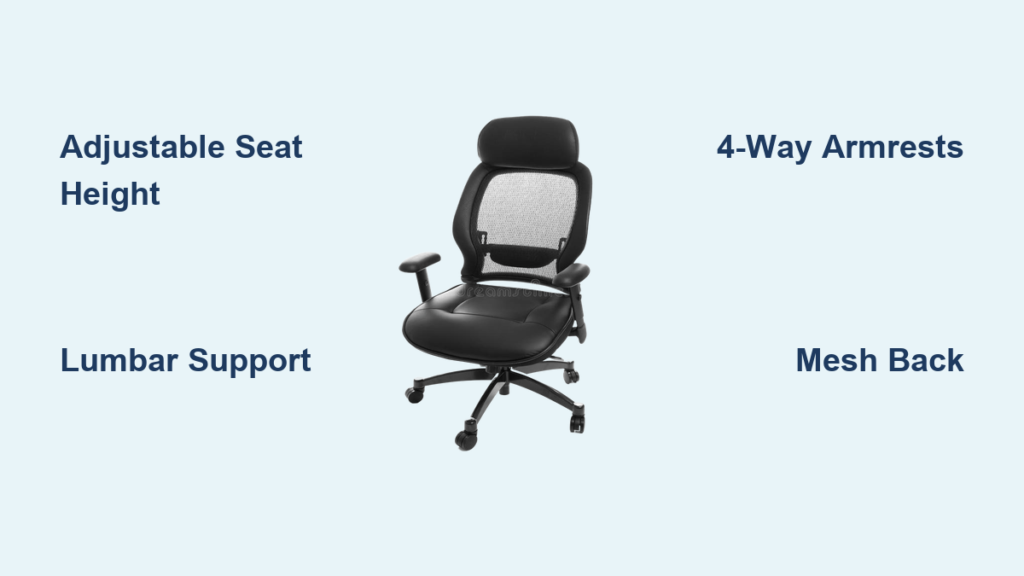
Adjustable lumbar support (up/down and forward/back) is essential for personalized fit.
– Position it in the small of your back—not at belly button level—where your spine curves inward.
– You should feel firm but comfortable pressure. If it digs in, adjust or add a cushion.
– For mesh chairs, ensure the lumbar zone is reinforced, not sagging fabric that offers no support.
Enable Reclining with Tension Control for Dynamic Sitting
Static sitting increases spinal load. A recline function helps you shift positions naturally.
– Look for:
• Tilt tension knob to control how easily the chair reclines
• Locking at multiple angles for upright, relaxed, or reclined postures
• Synchronized tilt—moves the seat pan slightly forward as you lean back, keeping thighs supported
– Avoid chairs that lock in one rigid position—they discourage movement and increase fatigue.
Keep an Open Gap Between Seat and Backrest
An open gap allows you to:
– Slide fully back into the chair without losing lumbar contact
– Wear bulky clothing or accessories comfortably
– Maintain proper posture without being pushed forward
– Avoid chairs with sealed or tight gaps—they restrict movement and reduce comfort.
Install 4-Way Adjustable Armrests to Reduce Shoulder Strain

Armrests are not optional—they reduce load on your neck and shoulders by supporting arm weight.
Require Height, Width, Depth, and Rotation Adjustability
Look for armrests that adjust in all four directions:
– Height: Set so shoulders are relaxed and arms hang at a 20° angle from your torso
– Width (in/out): Accommodates narrow or broad frames
– Depth (forward/back): Matches forearm length to keyboard height
– Rotation/pivot: Lets elbows align naturally with typing position
Prevent Wrist and Shoulder Pressure
- Never let armrests touch your wrists while typing—this increases carpal tunnel risk.
- Don’t raise shoulders to meet armrests—they should rest naturally.
- Choose broad, cushioned pads with smooth edges. Deep concave shapes dig into soft tissue and cause fatigue.
Build a Stable, Mobile Base for Daily Use

A stable foundation ensures safety and smooth movement throughout the day.
Use a 5-Star Base for Maximum Stability
A five-pedestal base is standard for quality ergonomic chairs.
– Offers superior balance and reduces tipping risk compared to 4-star models.
– Supports heavier users and frequent swiveling without wobbling.
Match Casters to Your Floor Type
Rolling smoothly depends on the right wheels:
– Hard floors (wood, tile): Use soft rubber casters to prevent scratches
– Carpeted floors: Choose hard plastic or dual-wheel casters for easy movement
– Some chairs offer interchangeable casters—ideal for mixed environments like home offices with both surfaces.
Pick Breathable, Durable Materials for All-Day Comfort
Material choice affects temperature regulation, hygiene, and long-term wear.
Compare Upholstery Based on Climate and Use
| Material | Best For | Drawbacks |
|---|---|---|
| Mesh | Hot climates, long sits | Poor lumbar support if not reinforced |
| Fabric | Comfort, breathability | Stains easily, harder to clean |
| Leather/Faux Leather | Style, easy wipe-down | Traps heat, can crack over time |
| Vinyl | Budget, spill resistance | No breathability, sticky in heat |
Optimize for Temperature and Maintenance
- Warm environments: Choose mesh back + fabric seat—best of both worlds.
- Allergies: Avoid cloth-covered foam—it traps dust mites.
- Shared or high-use settings: Prioritize stain-resistant, high-density fabrics for durability.
Evaluate Price vs. Long-Term Value
Spending more upfront often saves money and pain in the long run.
Know What You Get at Each Price Tier
- $50–$200: Basic support, limited adjustability. Good for occasional use.
- $200–$500: Best value. Full adjustability, quality materials (e.g., Steelcase Series 1, Autonomous ErgoChair 2).
- $500+: Premium features, advanced ergonomics, longer warranties (e.g., Herman Miller Aeron, Steelcase Leap).
Calculate Hourly Cost to Justify Investment
A $400 chair used 8 hours/day, 5 days/week, costs less than $0.20/hour over 5 years.
– Compare that to doctor visits, lost productivity, or chronic pain.
– Institutional buyers: Check for discounts (e.g., universities often get 40% off Steelcase or Humanscale via preferred vendors).
Test Before You Buy—Even Online
Never skip real-world evaluation.
Spend 10–15 Minutes Testing in Person
If possible, sit in the chair and assess:
– Lower back support
– Armrest height and wrist clearance
– Knee-to-seat edge gap
– Overall comfort after shifting positions
Choose Brands with Home Trial Policies
For online purchases, pick brands offering 30-day trial periods (e.g., Herman Miller, Autonomous).
– Test it at your actual desk for 60–120 minutes to evaluate true comfort.
– Real-world use beats showroom feel every time.
Complete Your Ergonomic Workspace
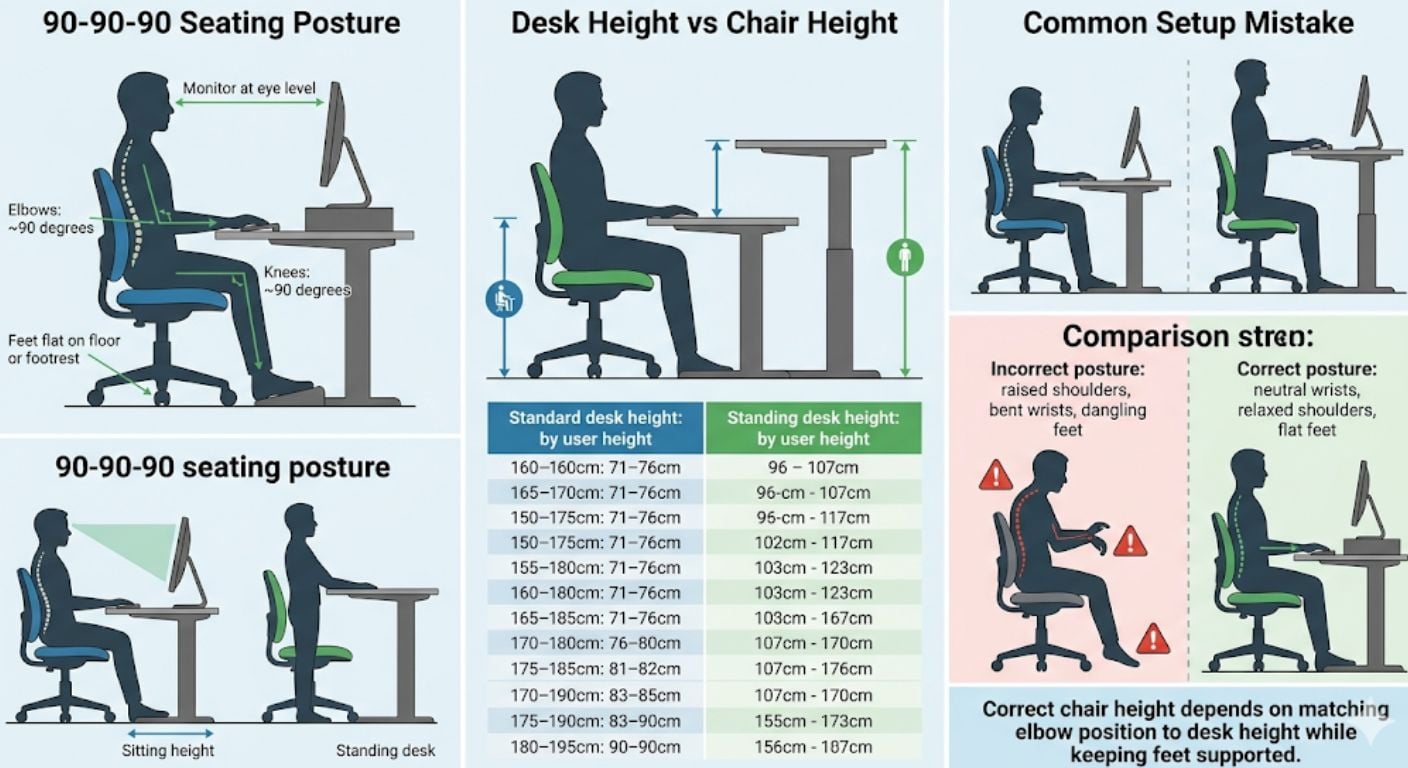
A great chair works best when paired with proper desk and monitor setup.
Align Desk and Monitor with Chair Height
- Desk height: Elbows at 90° when hands are on keyboard.
- Monitor position: Top of screen at or slightly below eye level, arm’s length away.
- Keyboard tray: Keep forearms parallel to floor—reduces wrist strain.
Encourage Movement Throughout the Day
- Sit-stand desks: Alternate every 30–60 minutes.
- Posture apps: Use free tools like Stand Up! or PostureMinder to prompt movement.
- Recline and stretch: Use your chair’s tilt function to shift positions—dynamic sitting beats static posture.
Prevent Pain and Boost Productivity
Reduce Risk of Chronic Issues
- Back pain prevention: Proper lumbar support maintains spinal alignment.
- Improved circulation: Correct seat height and depth prevent leg numbness.
- Neck and shoulder relief: Armrests and headrests (if used) reduce upper body strain.
Enhance Focus and Energy
- Comfortable workers are more alert and productive.
- Less discomfort = fewer distractions.
- A supportive chair helps you work longer without fatigue.
Frequently Asked Questions About Choosing an Ergonomic Office Chair
How do I know if an office chair fits my body?
Ensure your feet rest flat, knees are level with hips, there’s 1–2 inches behind your knees, and your lower back is fully supported. Armrests should let shoulders relax without raising them or touching wrists.
What is the ideal seat height for an ergonomic chair?
Between 16 and 21 inches off the ground. Adjust so your thighs are parallel to the floor and feet rest flat. Most adults from 5’2″ to 6’2″ fall within this range.
Why is lumbar support important in an office chair?
It maintains the spine’s natural inward curve, preventing slouching and reducing pressure on discs. Without it, you risk chronic lower back pain and poor posture.
Should armrests touch your wrists while typing?
No. Armrests should support your elbows and arms, but never touch your wrists while typing. This can compress nerves and lead to carpal tunnel syndrome.
How long should I test an ergonomic chair before deciding?
Test for at least 60–120 minutes in real use. Initial comfort can be misleading. A proper trial reveals how the chair performs over time.
Is a mesh-back chair better than fabric or leather?
Mesh excels in breathability, especially for long sits or warm climates. However, only choose mesh if it has reinforced lumbar support. Otherwise, opt for fabric seats with mesh backs for balanced comfort.
Key Takeaways for Choosing the Right Ergonomic Office Chair
Choosing the right ergonomic office chair comes down to fit, function, and long-term value—not looks. Prioritize adjustable seat height, depth, lumbar support, and 4-way armrests to match your body and work style. Always test the chair for at least an hour at your actual desk, and invest in a model that supports dynamic sitting and full spinal alignment.
Your spine, energy, and focus depend on it. Make the smart choice today—your future self will thank you.