Sitting in the wrong chair for hours can lead to chronic back pain, neck strain, and declining focus. With remote work becoming the norm, knowing how to choose a chair for a home office is no longer optional—it’s essential for your health and productivity. A poorly designed chair forces your body to adapt, but the right one adapts to you, supporting your spine, promoting movement, and keeping you comfortable through long workdays.
This guide walks you through every critical factor in selecting the best home office chair. You’ll learn how to match your work habits with the right ergonomic features, measure your body and space accurately, test chairs effectively, and avoid costly mistakes. From seat height to lumbar support, materials to budget, we cover what truly matters—so you can invest wisely in a chair that supports you for years.
Match Your Chair to Your Work Habits
Identify Your Daily Sitting Pattern
Your work routine determines the type of chair you need. If you’re logging 8+ hours daily, prioritize full adjustability and long-term lumbar support. Dynamic workers who shift between sitting, standing, or leaning benefit from chairs with smooth recline and tilt mechanisms. For those working in short bursts, a simpler design may suffice—but never skip core ergonomic features like proper seat height and back support.
Align the Chair With Your Desk Setup
Your chair must complement your desk height and workspace layout. If using a sit-stand desk, ensure the chair adjusts to lower positions when the desk is raised. Measure your desk’s clearance and confirm the chair’s height range allows your elbows to stay at 90–100° while typing. Also, check floor space—the base should fit without crowding walkways or drawers.
Set Seat Height for Proper Leg Alignment
Use the Gas Lift for a Custom Fit
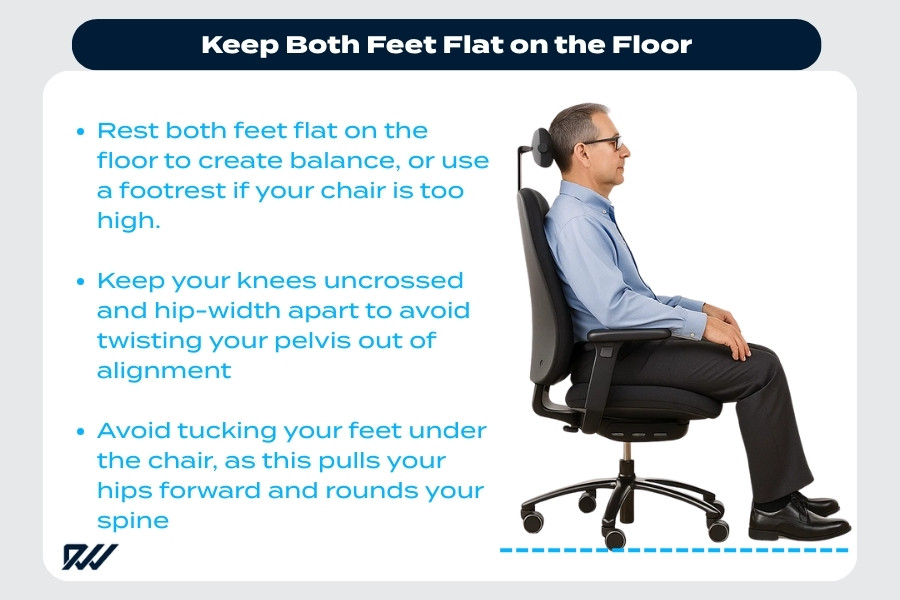
The gas lift cylinder controls seat height and should offer a wide range. Shorter users (5’2″ or under) need chairs that lower enough so feet rest flat and thighs stay parallel to the floor. Taller users need sufficient upward extension. Always test both extremes—especially if sharing the chair.
Prevent Posture Problems From Poor Height
Chairs with limited height adjustment force slouching or perching, straining hips and lower back. Never stack cushions to raise your height—they destabilize your posture. If your feet don’t reach the floor, use a footrest instead for stable support.
Adjust Seatpan Depth for Thigh Support

Fit Your Thighs Without Knee Pressure
Sit all the way back with your lower back against the backrest. There should be 1 to 2 inches between the front edge of the seat and the back of your knees. Too close? You’ll feel pressure behind the knees. Too far? Your thighs lose support, leading to fatigue.
Customize Based on Leg Length
- Longer legs: Slide the seatpan forward
- Shorter legs: Pull it backward
Many budget chairs lack this feature, making it a top cause of discomfort. Prioritize models with adjustable seat depth, especially for long sessions or shared use.
Choose a Backrest That Supports Your Spine
Ensure Coverage to Mid-Shoulder Blade
The backrest must support from your lumbar spine up to at least the mid-shoulder blade. High-back chairs are best—they reduce neck strain and prevent slouching. Avoid models that end just below the shoulder blades; they encourage poor posture over time.
Prevent Slouching With Full-Height Support
A short backrest forces you to lean forward, straining your lower back. A full-height design keeps your spine aligned and lets you sit upright with minimal effort, even after hours of work.
Optimize Lumbar Support for Lower Back Health
Position the Curve at Your Natural Arch
Lumbar support should align with the inward curve of your lower spine—typically around belly-button height. Choose chairs with adjustable lumbar pads that move vertically (and ideally horizontally) to match your spine. Fixed or poorly placed support can worsen back pain.
Reduce Risk of Chronic Back Pain
Proper lumbar support maintains spinal alignment, reducing pressure on discs and muscles. This is crucial for long-hour sitters. Test the chair by sitting 10+ minutes—does your lower back stay supported without strain?
Use Recline and Tilt to Encourage Movement
Enable Dynamic Sitting With Synchronized Tilt
A reclining backrest helps relieve spinal pressure. Look for synchronized tilt mechanisms that move the seatpan and backrest together, keeping your body aligned as you lean back. This supports natural movement and reduces fatigue.
Adjust Recline Tension to Your Weight
Many chairs let you control how easily the backrest reclines. Heavier users need higher tension; lighter users benefit from easier recline. Some models even lock in upright or reclined positions for focused work or breaks.
Ensure Space Between Seat and Backrest
Allow Room for Movement and Clothing
An open gap between the seatpan and backrest lets you scoot fully back while still getting lumbar support. It also accommodates belts, tool holsters, or added cushions. Avoid chairs with solid, continuous connections—they restrict movement and create pressure points.
Avoid Rigid, Restrictive Designs
Solid back-to-seat designs force you into one position. Over time, this leads to discomfort and poor circulation. The gap allows flexibility and better posture control throughout the day.
Set Armrests for Shoulder and Wrist Relief

Adjust Height, Width, and Angle Correctly
Armrests should support your arms without raising your shoulders. Set them so your shoulders rest at a 20° angle from your body and elbows bend at 90–100° when typing. They should not touch your wrists—keep wrists free-floating to prevent nerve compression.
Choose Smooth, Fully Adjustable Armrests
Look for armrests that adjust in height, width, forward/backward, and rotation. Rounded, padded edges prevent soft-tissue pressure. Avoid hard, concave, or fixed armrests—they cause fatigue and restrict movement.
Pick Breathable, Durable Chair Materials

Choose Reinforced Mesh for Long Sessions
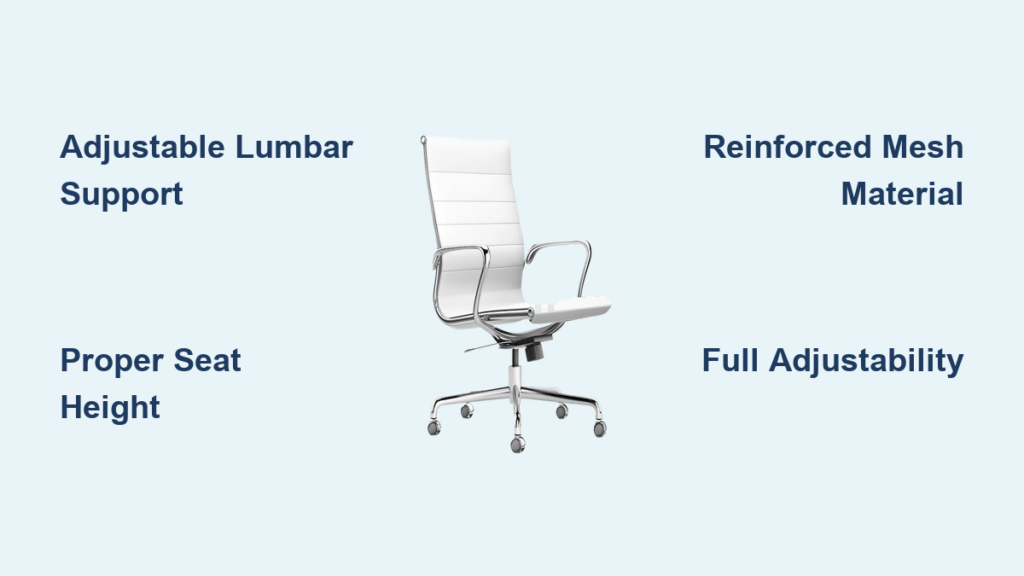
Mesh chairs offer excellent airflow, ideal for warm climates or long workdays. But not all mesh is equal—avoid low-end models with sagging fabric or weak frames. Look for reinforced mesh that maintains tension and supports your weight evenly.
Compare Fabric and Leather Trade-Offs
- Fabric: Softer feel and better style, but can trap heat
- Leather/Faux Leather: Durable and easy to clean, but gets hot during extended use
Prioritize breathability and durability. If you sweat easily or work long hours, mesh or breathable fabric is best.
Check Frame Strength and Build Quality
Inspect Frame and Mechanism Durability
The frame should be made of metal, solid wood, or high-grade plastic—not particleboard. Check the gas lift for smooth operation and long-term reliability. Look for chairs rated for your weight; most support 250–300 lbs, but heavy-duty models go higher.
Verify Weight Capacity Before Buying
Exceeding weight limits leads to premature wear or failure. Always confirm the chair’s maximum capacity—especially if you’re over 200 lbs.
Measure Your Body for the Right Fit
Assess Your Key Dimensions
Measure your height, seat depth (from tailbone to back of knee), and arm length. Use these to match chair specs. Most chairs list recommended user height and weight—stay within range for optimal support.
Follow the Ergonomic Fit Checklist
| Check Point | Ideal Position |
|---|---|
| Seat height | Feet flat, thighs parallel |
| Seatpan depth | 1–2″ behind knees |
| Backrest | Reaches mid-shoulder blade |
| Armrests | Elbows 90–100°, wrists free |
| Recline | Adjustable with sync tilt |
| Material | Breathable, durable, well-built |
Use this as a shopping checklist to compare models.
Test the Chair Before You Buy
Sit for at Least 10–15 Minutes
If buying in person, sit in the chair for 10–15 minutes. Adjust all settings to see how they feel over time. Does your back stay supported? Do pressure points develop? Can you recline comfortably?
Verify Key Posture Markers While Seated
While seated:
– Knees should be at 90°
– Feet flat on floor or footrest
– Lower back fully supported
– Shoulders relaxed, arms at 20° from body
– Wrists neutral, not resting on armrests
If any of these don’t align, keep looking.
Integrate the Chair With Your Desk Setup

Match Chair Height to Desk Level
Your desk should allow elbows at 90–100° when typing, with forearms parallel to the floor. If your chair and desk don’t work together, you’ll compensate with poor posture. Measure your desk height and ensure your chair can adjust to match.
Optimize Monitor and Keyboard Placement
- Monitor: Top of screen at eye level, 20–30 inches away
- Keyboard/Mouse: Close enough to avoid reaching, wrists neutral
- Cable Management: Use clips or channels to reduce clutter
- Monitor Arms: Free up space and improve ergonomics
A great chair is only effective when paired with a well-designed desk setup.
Consider Pairing With a Sit-Stand Desk
Alternate Between Sitting and Standing
Pairing your chair with a sit-stand desk encourages movement and reduces sedentary strain. Alternate every 30–60 minutes to boost circulation and focus. Even if you mostly sit, having the option to stand adds flexibility.
Choose a Chair That Works With Variable Heights
Not all chairs work well with sit-stand desks. Ensure your chair adjusts to lower heights when the desk is in standing mode, or consider a stool-style chair for higher positions.
Set a Realistic Budget for Long-Term Value
Know the Price Ranges and What to Expect
Office chairs range from $50 to over $1,000. Budget models often lack essential adjustments. For true ergonomic value, aim for $200–$500—this range includes durable, fully adjustable chairs from reputable brands.
Invest in Your Health and Productivity
A quality chair pays for itself in comfort, focus, and reduced pain. Don’t skimp on something you’ll use 40+ hours a week. Think of it as healthcare for your spine.
Review Warranty and Customer Support
Choose Chairs With Strong Warranties
Look for chairs with 5+ year warranties covering frame, mechanism, and gas lift. Premium brands often offer 10–12 year coverage. Also check customer service responsiveness—replacement parts should be available.
Avoid No-Name Brands With No Support
Unknown brands may offer low prices but lack support when parts fail. Stick with established manufacturers known for durability and service.
Balance Style With Ergonomic Function
Match the Chair to Your Home Office Aesthetic
Your workspace should feel inviting. Choose colors and finishes that blend with your decor—black, gray, white, or wood tones work well in most spaces. Mesh chairs tend to look modern; fabric offers warmth.
Never Sacrifice Support for Looks
Style matters, but never at the cost of support. A sleek leather chair might look impressive, but if it lacks adjustability or breathability, it won’t support long-term use.
Avoid These Common Chair Buying Mistakes
Skip Chairs With Non-Adjustable Lumbar Support
Fixed lumbar pads rarely fit most people well. Always choose adjustable support to match your spine.
Don’t Ignore Seatpan Depth
This is one of the most overlooked yet critical features. Without proper depth, you’ll lose thigh support or press into your knees.
Never Prioritize Style Over Function
A beautiful chair that hurts after 30 minutes isn’t worth it. Prioritize adjustability, support, and durability.
Always Test Before Committing
Even highly rated chairs may not fit your body. If buying online, choose retailers with free returns so you can test at home.
Don’t Underestimate Build Quality
Cheap materials fail quickly. Reinforced frames, quality mesh, and durable mechanisms are worth the investment.
Frequently Asked Questions About Choosing a Home Office Chair
What is the most important feature in a home office chair?
The most important feature is adjustable lumbar support. It maintains your spine’s natural curve, reduces lower back pain, and supports healthy posture during long work sessions. Without proper lumbar alignment, even the most expensive chair can cause discomfort.
How do I know if a chair fits my body?
Sit fully back with your lower back against the backrest. Your feet should be flat, knees at 90°, and backrest reaching mid-shoulder blade. There should be 1–2 inches between the seat edge and back of your knees. Adjust all settings and sit for 10+ minutes to test comfort.
Can I use any chair with a sit-stand desk?
Not all chairs work well with sit-stand desks. Ensure the chair adjusts to lower heights when the desk is raised. For higher standing positions, consider a stool-style chair with a footring and shorter base.
How much should I spend on a home office chair?
For true ergonomic value, spend $200–$500. This range includes durable, fully adjustable chairs from trusted brands. Avoid chairs under $150—they often lack critical adjustments and fail within a year.
What material is best for long sitting sessions?
Reinforced mesh is best for long sessions—it’s breathable, supportive, and prevents overheating. Avoid low-end mesh or faux leather, which traps heat and sags over time. If you prefer fabric, choose tightly woven, breathable upholstery.
Should armrests touch your wrists while typing?
No. Armrests should support your arms but not touch your wrists. Keep wrists free-floating to avoid nerve compression and reduce the risk of carpal tunnel. Adjust armrests so elbows rest at 90–100° and shoulders stay relaxed.
Key Takeaways for Choosing the Best Home Office Chair
Choosing how to choose a chair for a home office comes down to fit, function, and long-term support. Prioritize adjustable seat height, seatpan depth, lumbar support, and armrests that match your body. Test chairs for at least 10–15 minutes and verify all ergonomic markers align. Pair your chair with a properly set up desk and monitor for full workspace harmony.
Invest in a chair between $200–$500 from a reputable brand with a strong warranty. Avoid style-over-function traps and never skip testing. Your spine—and productivity—will thank you. Start by measuring your body and workspace, then use the checklist to compare models. Your ideal chair is out there—find the one that works for you, every day.