You’re working from home, but by mid-afternoon, your neck aches, your wrists tingle, and your focus fades. The culprit? A workspace that doesn’t support your body. Millions of remote workers face this silent strain—caused not by overwork, but by poor ergonomics. Without proper setup, small discomforts turn into chronic pain, draining your energy and productivity. The good news? You don’t need a full office renovation. With smart, science-backed adjustments—starting with chair height, monitor position, and movement habits—you can build a sustainable, pain-free work environment. This guide shows you exactly how to set up an ergonomic home office using principles from Cornell University, NIOSH, and NIH. You’ll learn how to align your body in neutral posture, position your equipment correctly, and integrate movement into your day—so you can work longer, focus better, and feel stronger at the end of each day.
Adjust Chair Height for Proper Leg and Hip Alignment
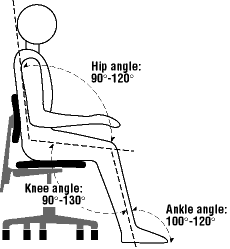
Start with your chair—it’s the foundation of your ergonomic home office. Adjust the height so your feet rest flat on the floor. Your thighs should be parallel to the ground, and your knees bent at a 90-degree angle. If your chair doesn’t go low enough (common with taller desks), use a footrest or stack of books to support your feet. Avoid dangling legs or tucking feet under the chair, as both disrupt circulation and strain your lower back.
Position Hips at a 90–100° Angle
Your hips should sit slightly higher than your knees, creating a 90–100° angle. This tilt promotes better pelvic alignment and reduces pressure on the lumbar spine. The seat pan should be level and parallel to the floor, leaving 1–2 inches of space between the front edge and the back of your legs. This prevents compression behind the knees and supports healthy blood flow.
Add Lumbar Support to Maintain Spinal Curve
Your lower back should gently press against the chair’s lumbar support. If your chair lacks built-in support, use a small cushion or rolled towel placed at belt level. This maintains the spine’s natural curve and prevents slouching. For pregnant users, consider a chair with a downward-tilted seat or raise the chair slightly to create abdominal space and reduce lower back strain.
Set Armrests to Keep Shoulders Relaxed
Adjust armrests so your elbows bend at 90–100°. Your forearms should rest lightly, allowing shoulders to stay relaxed—not hunched toward your ears. If armrests push your elbows up or out, lower them or remove them entirely. Remember: armrests support the forearms, not the wrists. Poorly positioned armrests increase spinal load and fatigue over time.
Optimize Desk Height to Prevent Shoulder Strain
Most dining tables are too high (typically 29–30 inches), forcing shoulders to rise and wrists to bend. The ideal desk height allows your forearms to stay parallel to the floor when typing. If your desk is too high, consider a keyboard tray or raise your chair with a footrest. Ensure ample legroom—clear cables, drawers, and clutter that crowd your legs and force awkward postures.
Position Your Monitor to Protect Neck and Eyes

Align Monitor Top at Eye Level
Place the top of your monitor at or slightly below eye level. When seated, your eyebrows should align with the top third of the screen. This slight downward gaze reduces neck strain and eye fatigue. Position the monitor about an arm’s length away—close enough to read comfortably, far enough to avoid leaning forward.
Arrange Dual Monitors Without Neck Twisting
For dual setups, angle the screens in a slight V-shape with the primary monitor centered. Alternatively, place your main screen directly in front and the secondary to one side for occasional use. Both monitors should be at eye level. Avoid placing them too close together or too far apart—adjust for comfort and minimal head turning.
Fix Laptop Neck with Elevation and External Devices
Using a laptop on a desk forces your head forward, straining the neck—a condition known as “laptop neck.” Fix this by raising the laptop with a stand or stack of books. Once elevated, connect an external keyboard and mouse. Never type on the laptop’s built-in keyboard while it’s raised—this causes shoulder strain from reaching upward.
Optimize Keyboard and Mouse Placement
Keep Wrists Neutral with Proper Keyboard Height
Use a keyboard that sits slightly above elbow height, allowing wrists to stay straight and float freely. Avoid resting wrists on the desk—this compresses nerves and can lead to repetitive strain. Most keyboards come with flip-up feet that tilt the board away from you. This is incorrect. Instead, keep the keyboard flat or use a slight negative tilt (front edge higher) to reduce wrist extension.
Center Input Devices to Reduce Shoulder Reach
Shift your keyboard and mouse so they’re centered in front of your body, not off to one side. For frequent mouse users, move the keyboard slightly left and the mouse slightly right to keep both hands close to the midline. Better yet, use a compact keyboard without a number pad—this brings the mouse closer and reduces shoulder strain, especially for right-handed users.
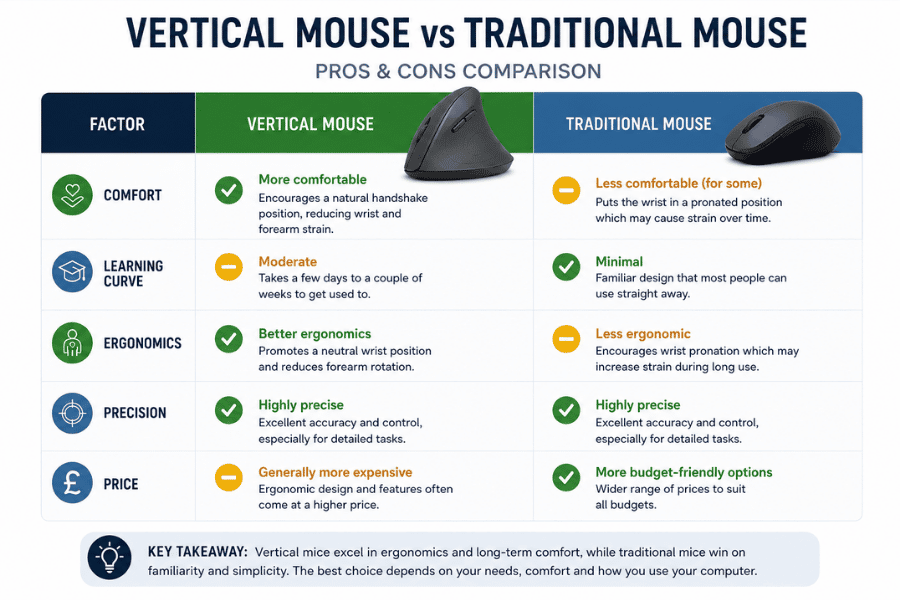
Upgrade to Ergonomic Mice for Better Forearm Alignment
Traditional mice force your forearm into pronation (palm-down position), straining tendons over time. Replace them with ergonomic alternatives:
• RollerMouse (Contour Design): A roller bar sits in front of the keyboard, keeping hands centered and eliminating side reach
• Vertical Mouse: Reduces forearm twist and promotes a handshake-like grip
• Contour Touch: A gesture-based touchpad that minimizes wrist movement
• UniMouse: Adjustable tilt angles let you find a neutral forearm position
The goal: keep wrists straight, arms relaxed, and avoid overreaching.
Use a Document Holder for Frequent Data Entry
If you frequently type from printed documents, use a document holder placed directly between your monitor and keyboard. This keeps your head upright, eliminating constant down-and-up motion that strains the neck. Position the holder at the same height and distance as your screen for seamless eye movement.
Use a Standing Desk the Right Way
Apply Ergonomic Rules to Standing Position
If you use a height-adjustable desk, apply the same principles while standing. Set the desk so your elbows stay at 90–100° and your forearms remain parallel to the floor. Keep the keyboard and mouse close—avoid overreaching. Lower the monitor slightly so the top of the screen aligns with eye level when standing (it will feel lower than when seated).
Limit Standing Time and Use Anti-Fatigue Mats
Standing all day isn’t the answer. Limit standing to 10–15 minutes per hour to prevent fatigue and circulation issues. Use an anti-fatigue mat to reduce pressure on your feet and legs. Shift your weight, shift posture, and return to sitting regularly. The key is movement, not static standing.
Build Movement Into Your Workday
Take 5-Minute Breaks Every Hour
Every hour, take a 5-minute break. Stand up, walk to another room, stretch your arms overhead, or roll your shoulders. These aren’t luxuries—they’re maintenance. Muscles and tendons need blood flow and position changes to stay healthy. Skipping breaks leads to stiffness, reduced focus, and long-term strain.
Use Micro-Breaks Every 20–30 Minutes
Between hourly breaks, take micro-breaks every 20–30 minutes. Look away from the screen, rest your hands, shift your posture, or glance out a window. You don’t need to stand—just change something. These brief pauses prevent eye strain, reduce mental fatigue, and keep your body alert.
Shift Posture Regularly to Avoid Stiffness
Even with perfect setup, sitting frozen in one position causes problems. Shift your posture every 30–60 minutes—lean forward, back, or side-to-side. Use a chair that allows natural movement. Your spine isn’t meant to stay rigid. Movement is part of ergonomics.
Optimize Your Environment and Habits
Keep Your Desk Clean and Organized
A clean workspace supports better posture and focus. Remove unnecessary items, organize cables, and keep only essential tools within reach. Clutter under the desk restricts legroom and forces awkward leg positions. Use cable clips or trays to manage cords and maintain open space.
Reduce Screen Glare with Proper Lighting
Use natural side lighting instead of overhead fluorescents, which cause screen glare and eye strain. Position your monitor perpendicular to windows to avoid reflections. If glare persists, use an anti-glare screen filter. Proper lighting reduces headaches and improves visual comfort.
Set Break Reminders to Build Healthy Routines
If you forget to take breaks, use a timer or app like Stretchly, Time Out, or Pomodoro to remind you. It may feel awkward at first, but within a week, it becomes routine. The payoff? Less stiffness, better focus, and fewer end-of-day aches.
Customize and Sustain Your Setup
Test and Adjust Based on Your Body
There’s no one-size-fits-all setup. Test your configuration: sit, stand, type, and adjust until you feel supported and relaxed. Everyone’s body is different—hip width, arm length, vision needs. Your desk should adapt to you, not the other way around. Use the NIOSH Computer Workstation Checklist or NIH ergonomics self-assessment for structured feedback.
Make Changes One Step at a Time
Don’t try to fix everything at once. Start with one change:
1. Adjust chair height
2. Raise your monitor
3. Center your keyboard and mouse
4. Add lumbar support
Notice how each change feels before moving to the next. Small, sustainable shifts beat a rushed overhaul.
Focus on Long-Term Use, Not Perfection
The goal isn’t a flawless setup—it’s a sustainable one. Focus on creating a workspace that:
• Supports your daily tasks
• Protects your hands, shoulders, and back
• Lets you show up tomorrow feeling as good as today
Perfection is exhausting. Consistency is powerful.
Frequently Asked Questions About Ergonomic Home Office Setup
Why is an ergonomic home office important for remote workers?
An ergonomic home office prevents long-term musculoskeletal issues like wrist strain, shoulder tension, and lower back pain. Poor workspace arrangements compound over time, affecting both physical health and productivity. Research shows proper workstation setup reduces discomfort and boosts focus during remote work.
How should I position my monitor for proper ergonomics?
Place the top of the monitor at or slightly below eye level, about an arm’s length away. Position it directly in front of you to avoid neck twisting. If using a laptop, elevate it with a stand and add an external keyboard and mouse to prevent shoulder strain.
What is the correct desk and chair height for an ergonomic setup?
Adjust the chair so feet rest flat on the floor with thighs parallel to the ground. The keyboard and mouse should allow forearms to stay parallel to the floor with wrists straight. Most dining tables are too high—consider a keyboard tray or raising the chair with a footrest.
What are the best ergonomic mice to reduce wrist pain?
Ergonomic mice reduce forearm strain by promoting neutral wrist positions. Options include roller bars positioned in front of the keyboard, vertical mice that reduce pronation, and adjustable-angle mice. The key is keeping the wrist straight and the arm relaxed without reaching across the desk.
How often should I take breaks when working from home?
Take a five-minute break every hour to stand, stretch, and walk around. Additionally, incorporate micro-breaks every 20–30 minutes by looking away from the screen, resting hands, and shifting posture. These movement intervals improve blood flow and reduce end-of-day stiffness.
Can a standing desk improve my home office ergonomics?
A standing desk can benefit your ergonomic home office by encouraging posture changes throughout the day. Alternating between sitting and standing reduces pressure on the lower back and promotes movement. However, proper monitor height and anti-fatigue mats are essential for standing comfort.
Key Takeaways for Setting Up an Ergonomic Home Office
• Start with chair height and monitor position—these two adjustments prevent most neck and back pain
• Keep wrists floating, not resting, and elbows at 90° to maintain neutral posture
• Take hourly breaks and micro-breaks to reset your body and mind
The best ergonomic home office isn’t the most expensive—it’s the one you actually use consistently. Use this guide to build a workspace that protects your health, sharpens your focus, and supports your long-term success.