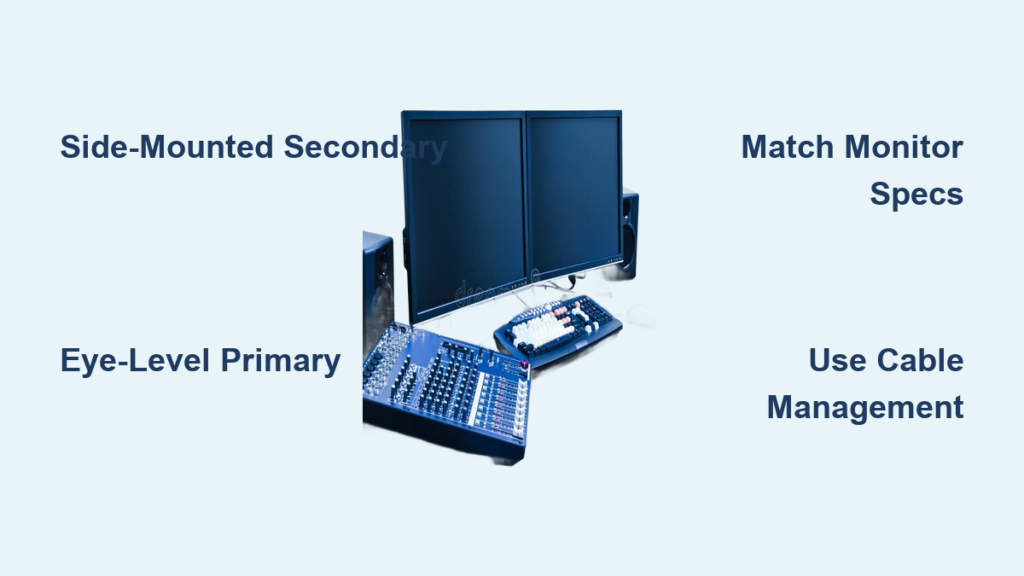
If you’re tired of constantly minimizing and maximizing windows, struggling with neck pain, or losing focus between tabs, your monitor setup might be the culprit. The best dual monitor setup for office work isn’t just about adding screens—it’s about creating a seamless, ergonomic workflow that reduces strain and boosts efficiency. Poorly placed monitors can sabotage your productivity, but a well-designed dual display system keeps your eyes aligned, your posture stable, and your tasks organized.
In this guide, you’ll discover the most effective dual monitor configurations backed by ergonomic research and real-world use. From ideal screen placement and hardware pairings to software tools that maximize space, we’ll show you how to build a clutter-free, high-performance office setup. Whether you’re coding, writing, analyzing data, or managing remote meetings, you’ll learn how to configure your screens for comfort, consistency, and long-term focus—without unnecessary complexity.
Choose the Optimal Monitor Configuration

Side-Mounted Secondary Monitor for Focused Work
The best dual monitor setup for office productivity places your primary screen directly in front of you and the secondary monitor angled 30 degrees to the side—either left or right. This arrangement keeps your central vision undisturbed while giving quick access to email, Slack, or reference materials on the second screen.
Key benefits:
• Reduces neck strain from constant head turning
• Keeps deep work tasks isolated on the primary display
• Maintains visual flow when dragging windows between screens
Pro tip: Align the inner edge of the secondary monitor with the outer edge of the primary. This minimizes head rotation and creates a smooth transition for dragging windows.
Avoid placing two large monitors side-by-side unless they’re identical in size, brightness, and bezel thickness. Mismatches cause visual fatigue and disrupt focus.
Vertical Monitor for Code, Docs, and Data
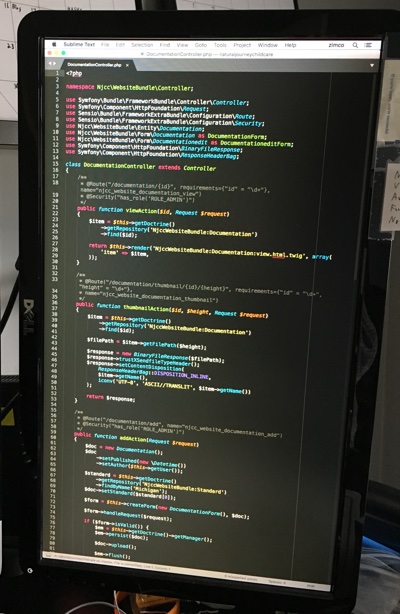
Rotate one monitor 90 degrees if you work with long documents, code, or logs. A vertical monitor layout eliminates constant scrolling and displays full web pages, GitHub pull requests, or financial statements in one view.
Best suited for:
• Software developers reviewing code
• Writers editing manuscripts
• Analysts scanning logs or reports
Warning: Never place the vertical screen directly in front of you. Use it as a secondary display to the side. Constant vertical eye movement causes fatigue. Keep your primary screen horizontal and centered.
Pair a 27″ 4K monitor (horizontal) with a 24″ 1440p or 15″ portable screen (vertical) for balanced proportions. Match aspect ratios to prevent distortion when moving content between screens.
Avoid Stacked Monitor Setup on Mac

Placing a monitor above or below your primary may save desk space, but it introduces serious issues—especially on macOS.
Critical flaw: The macOS Dock becomes inaccessible when a secondary monitor is stacked. Even with auto-hide disabled, hovering near the bottom of the top screen won’t trigger the Dock, breaking muscle memory.
Other risks:
• Neck strain from looking up or down
• Poor posture over time
• Instability without proper VESA mounting
Only consider stacked setups on Windows, and even then, limit to small secondary displays like a 13″ portable screen.
Ultrawide Monitor as a Dual-Screen Alternative
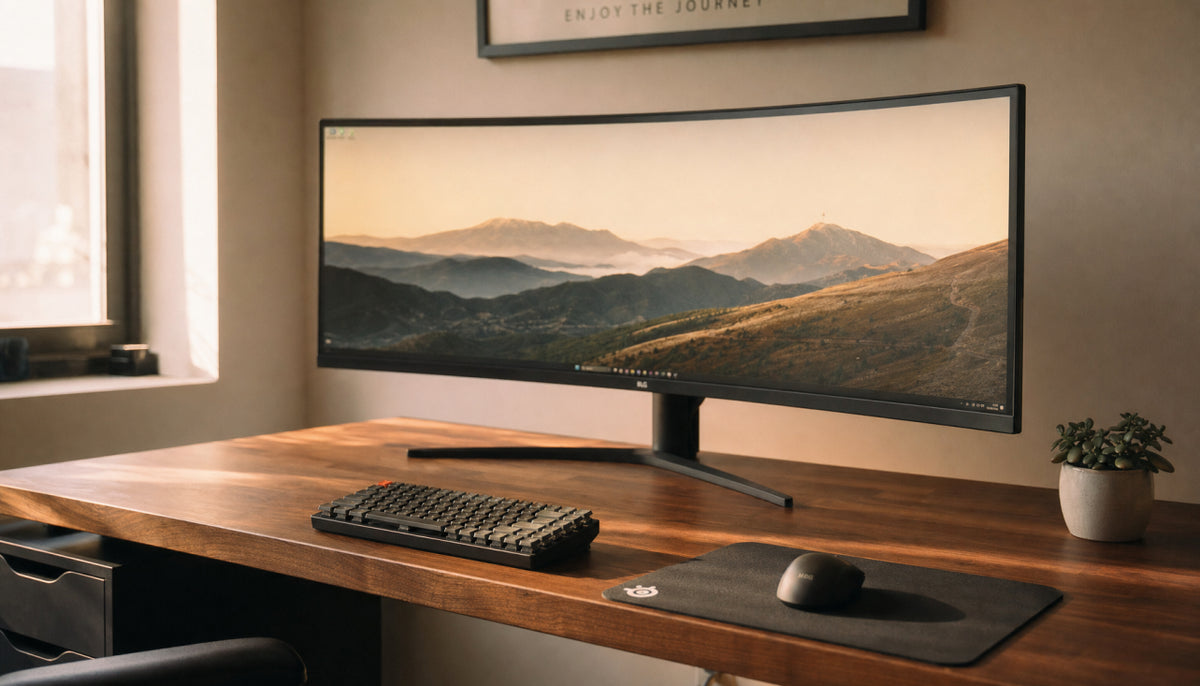
An ultrawide monitor (34” or 49”) can replace two 24–27” displays with a single seamless screen. No bezel gap, no cable clutter, and excellent multitasking with split-screen apps.
Ideal for:
• Traders monitoring multiple charts
• Video editors with timelines and previews
• Developers using IDEs and terminals side-by-side
But beware: ultrawides encourage excessive side-to-side eye movement, leading to neck strain. Use software zones (like FancyZones or Rectangle) to lock apps into fixed areas and reduce panning.
Also, older enterprise apps may not scale well on ultrawide resolutions. Some appear pixelated or misaligned.
Best compromise: Use a 32″ 4K monitor as your primary and reserve ultrawide for specialized tasks.
Optimize Ergonomics and Visual Consistency
Match Monitors to Prevent Eye Strain
Using mismatched monitors—different brands, ages, or resolutions—creates visual dissonance. One screen may appear brighter or warmer, forcing your eyes to constantly adjust.
To maintain visual harmony:
• Use identical models whenever possible
• If mixing, match panel type (IPS), resolution (4K), and aspect ratio (16:9)
• Calibrate brightness and color temperature manually or with built-in tools
Example: Pairing a Dell UltraSharp U2723QE (27″, 4K) with an LG 32UN880-B (32″, 4K) works only if you align their height, tilt, and brightness. Otherwise, the size and clarity gap will distract.
Position Primary Screen at Eye Level
Your primary monitor should:
• Be centered with your nose
• Have the top edge at or slightly below eye level
• Sit 20–30 inches from your face
Use a monitor arm or riser to achieve proper height. Never place a monitor directly on a laptop stand unless it’s your secondary screen.
Visual cue: When seated, your gaze should naturally fall on the upper third of the screen—not the middle or bottom.
Minimize Head and Eye Movement
Every degree of head turn adds up over an 8-hour day. The goal is to keep your primary screen within a 30-degree cone of vision and your secondary screen within 60 degrees.
Follow this rule:
• Primary: Directly in front, centered
• Secondary: Angled 30° off-center, same height
• Tertiary (if used): Further out, but not blocking movement
Avoid triple-monitor setups unless you have a wide desk (60″+) and need constant access to multiple data streams (e.g., trading, control rooms).
Build a High-Performance Office System
Required Hardware for Dual 4K Monitors

To run two 4K monitors smoothly at 60Hz with HDR or USB-C power delivery, your system must meet these specs:
| Component | Recommendation |
|---|---|
| GPU | NVIDIA RTX 4070 Ti Super (12GB VRAM) or AMD Radeon RX 7900 XT |
| Ports | At least 2x DisplayPort 1.4 or HDMI 2.1, or Thunderbolt 4 |
| CPU | AMD Ryzen 7 7700X or Intel Core i7-13700K |
| RAM | 32GB DDR5 (6000MHz) |
| OS | Windows 11 Pro or macOS Ventura+ |
Laptop users: Use a Thunderbolt 4 docking station (e.g., CalDigit TS4 or Dell D6000) to connect both monitors, power the laptop, and expand USB ports.
Top Monitor Pairings for Office Work
1. Dell UltraSharp U2723QE + LG 32UN880-B
• Primary: 27″ 4K IPS, USB-C, 99% sRGB
• Secondary: 32″ 4K IPS, HDR10, USB-C hub
• Why it works: Both support USB-C daisy-chaining, reducing cable clutter. The LG’s USB hub powers peripherals and charges laptops.
2. Apple Studio Display + 15″ Vertical Portable Monitor
• Primary: 27″ 5K Retina, P3 color, built-in camera
• Secondary: 15.6″ 1080p or 1440p portable screen (e.g., ASUS ZenScreen)
• Bonus: Use Sidecar with an iPad mini instead of a second monitor for wireless simplicity.
3. Samsung M8 Smart Monitor + iPad Mini
• Primary: 32″ 4K, wireless DeX, no PC needed
• Secondary: iPad mini (6th gen) below or to the side
• Use case: Minimalist home office with zero cables (except charging)
Use Smart Software to Maximize Screen Space
Window Management Tools for Precision Layouts
Even with two monitors, poor window placement kills productivity. Use software to snap apps into zones.
FancyZones (Windows)
Part of Microsoft PowerToys, FancyZones lets you create custom grid layouts across multiple monitors.
Features:
• Drag windows into predefined zones
• Save layouts per monitor configuration
• Keyboard shortcuts (e.g., Win + Ctrl + Arrow)
Setup tip: Create a “coding” layout with 50% IDE, 25% terminal, 25% browser—all on one screen.
Rectangle (macOS)
Free, open-source alternative to Magnet.
How to use:
• Press Cmd + Option + Left/Right to snap to half-screen
• Cmd + Ctrl + Up for full screen
• Customize shortcuts in Settings
Pro tip: Combine with Mission Control to quickly switch between desktops (e.g., one for email, one for coding).
Automate Workflows with Virtual Desktops
Both Windows and macOS support virtual desktops—use them to separate tasks.
Examples:
• Desktop 1: Email, calendar, Slack
• Desktop 2: Code editor, terminal, docs
• Desktop 3: Web research, PDFs
Switch with:
• macOS: Ctrl + Left/Right
• Windows: Win + Ctrl + Left/Right
This reduces clutter and keeps focus where it belongs.
Avoid Common Dual Monitor Mistakes
Don’t Use Mismatched Resolutions
Dragging a window from a 1080p screen to a 4K screen causes scaling issues. Text may appear tiny or blurry.
Fix: Run both monitors at the same resolution (e.g., 4K) or use OS scaling (150–200%) to match perceived size.
Never Skip Cable Management
A tangle of HDMI, USB, and power cables looks unprofessional and increases stress.
Solutions:
• Use monitor arms with built-in cable channels
• Install a desk grommet or cable tray
• Bundle wires with velcro straps or sleeves
Pro move: Use USB-C daisy-chaining if your monitors support it (e.g., Dell U2723QE). One cable carries video, data, and 90W power.
Don’t Overlook Lighting and Glare
Position monitors perpendicular to windows to avoid glare. Use bias lighting (a soft LED strip behind the monitor) to reduce eye strain in dim rooms.
Check:
• No reflections on the screen
• Ambient light matches screen brightness
• Matte finishes preferred over glossy in bright offices
Best Setup by Use Case
For Developers
Ideal: Primary horizontal 4K + secondary vertical 1440p
Why: Code files fit fully on the vertical screen; IDE and terminal side-by-side on the main.
Tools:
• VS Code on primary
• GitHub PRs or logs on vertical
• Terminal in bottom zone
Use FancyZones or Rectangle to lock layouts.
For Remote Workers
Ideal: Primary 27″ 4K + iPad mini below
Why: Clean, wireless secondary screen for notes, calendar, or Zoom.
Benefits:
• No extra cables
• Seamless color sync with Mac
• Portable for meetings
Use Sidecar or Duet Display for low-latency mirroring.
For Writers and Analysts
Ideal: 32″ 4K ultrawide or dual 27″ 4K with vertical secondary
Why: Long documents fit without scrolling; research on the side.
Software:
• Obsidian or Notion on main
• Research PDFs or web on secondary
• Use Focus Mode to hide distractions
For Minimalists
Ideal: Single 32″ 4K monitor + software window management
Why: Two physical monitors aren’t always needed. A well-zoned 4K screen does the job.
Example layout:
• Left 50%: Main app
• Right 50%: Reference or chat
• Top quarter: Notifications
Frequently Asked Questions About Best Dual Monitor Setup for Office
What is the best dual monitor setup for office productivity?
The best setup places a 27″ 4K primary monitor directly in front of you, centered and at eye level, with a secondary screen (32″ 4K or vertical 15″ portable) angled 30° to the side. This reduces head movement, prevents neck strain, and keeps your workflow focused.
Should I place my second monitor to the side or above?
Place your second monitor to the side, not above. Stacking monitors causes neck strain and, on macOS, makes the Dock inaccessible. A side-mounted secondary screen at a 30-degree angle minimizes head rotation and maintains ergonomic alignment.
Can I use different monitor sizes for dual display?
Yes, but match resolution, aspect ratio, and brightness. A 27″ 4K primary with a 32″ 4K secondary works if both are IPS panels and calibrated. Avoid mixing 1080p and 4K unless using OS scaling to balance perceived size.
Is a vertical monitor good for office work?
Yes, if you work with code, long documents, or logs. A vertical monitor reduces scrolling and fits full pages. Use it as a secondary display to the side, not your primary, to avoid eye fatigue from constant up-and-down movement.
Do I need special software for dual monitors?
Yes. Use FancyZones (Windows) or Rectangle (macOS) to snap apps into zones. Combine with virtual desktops to separate tasks like email, coding, and research. These tools maximize screen utility without adding hardware.
How do I reduce cable clutter with dual monitors?
Use USB-C daisy-chaining (e.g., Dell U2723QE), monitor arms with cable channels, and velcro straps. A Thunderbolt 4 dock can power your laptop and connect both monitors with minimal cables.
Key Takeaways for Building the Best Dual Monitor Setup for Office
The best dual monitor setup for office combines ergonomic alignment, visual consistency, and workflow-specific optimization.
Winning configuration:
• Primary: 27″ 4K IPS monitor (e.g., Dell U2723QE), centered, eye-level
• Secondary: 32″ 4K or vertical 15″ portable monitor, placed to the side at 30°
• Mounting: Dual VESA arm for clean alignment and adjustability
• Software: FancyZones (Windows) or Rectangle (macOS) for window control
• Extras: Bias lighting, cable management, virtual desktops
Avoid: Stacked setups on Mac, mismatched monitors, and triple-monitor overload.
Test your setup for one week. If you’re turning your head more than 45 degrees or squinting at color differences, adjust. The best setup isn’t the fanciest—it’s the one that lets you work longer, clearer, and with less strain.